Permissions, Departments & Drafts
As your team grows, more people end up working inside the same CMS — marketing pushing campaigns, HR updating staff comms, reception managing visitor screens, local managers running content in different offices. Without clear ownership and review steps, every change becomes a potential mistake on a live screen.
Castit's role-based permissions and draft & publish workflow let you split responsibilities by department, control who can edit which screens, and review changes before they reach players. Both features are optional and can be switched on or off depending on how your organization works.
This guide covers the full setup: roles, the Permissions & workflow settings, departments, and the draft workflow.
User Roles
Castit supports three levels of access:
| Role | Scope | Can publish to screens? |
|---|---|---|
| Admin | Sees everything across all departments, manages users, and configures permissions and workflow settings. | Always — directly. |
| Member | Works within their assigned department(s). Can edit the screens they're responsible for. | No — changes are saved as drafts that need approval. |
| Moderator (Member with publish rights) | Same scope as a Member, but their edits go live immediately. | Yes — directly. |
A Moderator is simply a Member who has the Can publish toggle enabled in the Members tab. Promoting a Member to Moderator (or back) is a single click — there is no separate role to assign.
Roles and departments only have an effect once the matching toggles are turned on in Settings → Permissions & workflow. With both toggles off, all users see every screen and every edit goes live immediately.
Permissions & Workflow Settings
All organization-wide permission controls live under Settings → Permissions & workflow in the left sidebar. This is where an admin decides how the whole organization works inside the CMS.
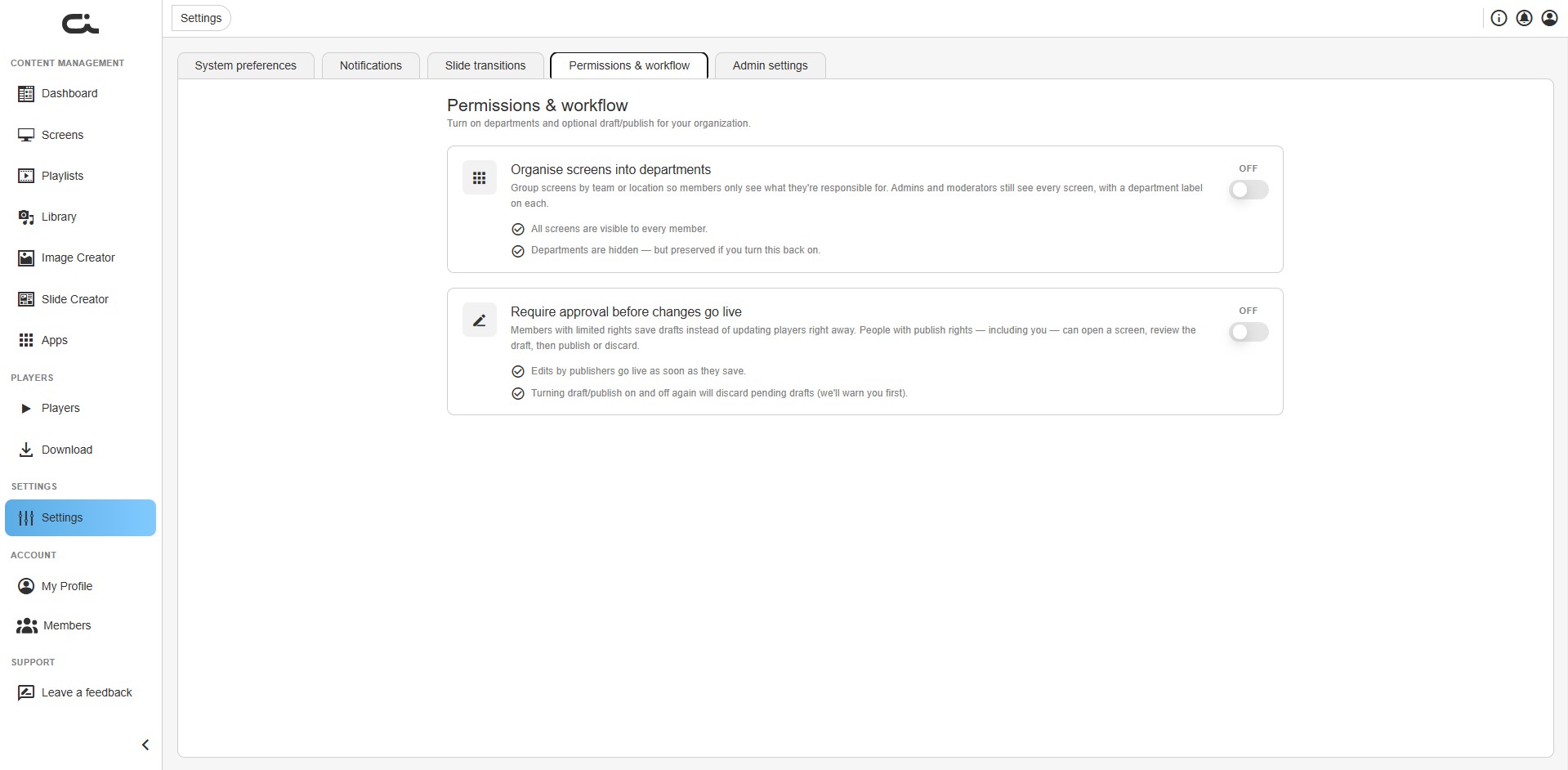
There are two independent toggles here — you can use either, both, or neither.
Organise Screens into Departments
The first toggle groups screens by team, location, or function.
- When on, Members only see the screens that belong to the departments they're part of.
- Admins and Moderators still see every screen across the account, with a small department label on each one so it's easy to track where things sit. They can also move screens between departments.
When you enable departments for the first time, all your existing screens are automatically grouped under a default department. From there you can rename it, create new departments, and assign screens and members to match how your organization actually works:
- A retail company might split by region.
- A corporate office might split by function — HR, marketing, reception, meeting rooms.
- A school might split by building.
If you turn departments off later, all screens become visible to everyone again. Departments are hidden, not deleted — your structure is preserved and switching the toggle back on restores it.
Require Approval Before Changes Go Live
The second toggle activates the draft & publish workflow.
- When on, Members without publishing rights save their work as drafts instead of pushing changes straight to the players. Screens keep showing whatever is currently live until someone with publishing rights reviews the draft and publishes or discards it.
- Admins and Moderators can publish directly.
You control who has publishing rights from the Members tab using the Can publish toggle. This lets a junior team member prepare daily content updates while a senior colleague does a quick review before anything reaches the actual display.
When you turn this option off, every edit goes live immediately and any pending drafts are discarded. Castit shows a warning before discarding outstanding drafts.
The Account Section
User management now lives in its own Account section in the left sidebar, below Settings. It contains:
- My Profile — your personal account details (see Account Settings).
- Members — view and manage everyone who works inside your account.
- Departments — fine-tune your department structure (visible once departments are turned on).
General account information previously found under Settings has moved into this Account section.
Members
The Members tab is where you see and control who works inside your account.
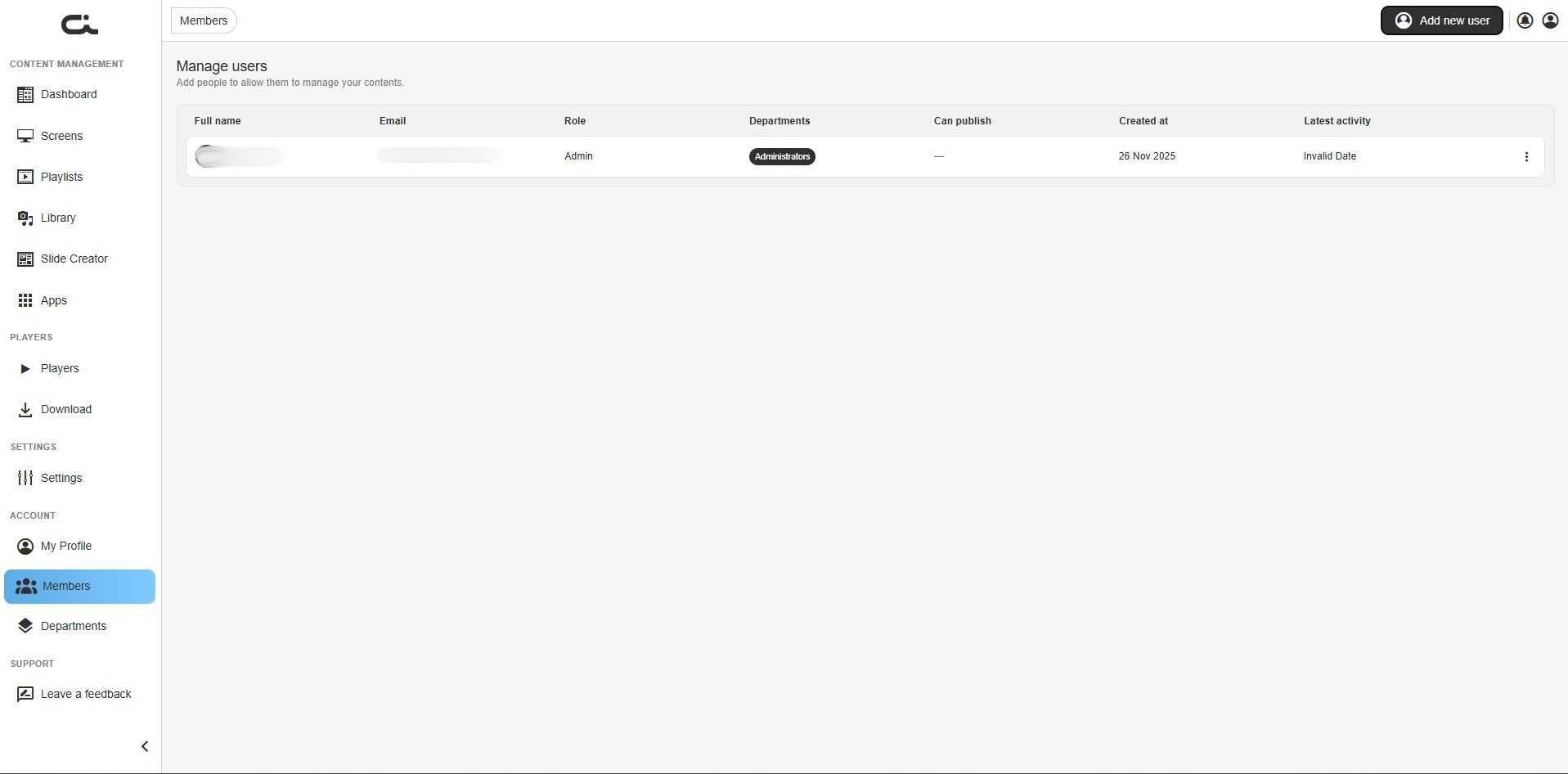
For each user, the list shows:
- Full name
- Role (Admin, Member, Moderator)
- Departments they belong to
- Can publish — the toggle that turns a Member into a Moderator
- Created at
- Latest activity
The Can publish toggle is right there in the row, so promoting someone from Member to Moderator takes one click. Edit and delete buttons sit at the end of each row.
Adding a new user
- Click Add new user below the list.
- Enter the user's first and last name and email address.
- Tick the moderator checkbox if they should have publishing rights.
- Click Save.
The user gets access immediately.
Departments
Once departments are turned on, use the Departments tab to manage the actual structure.
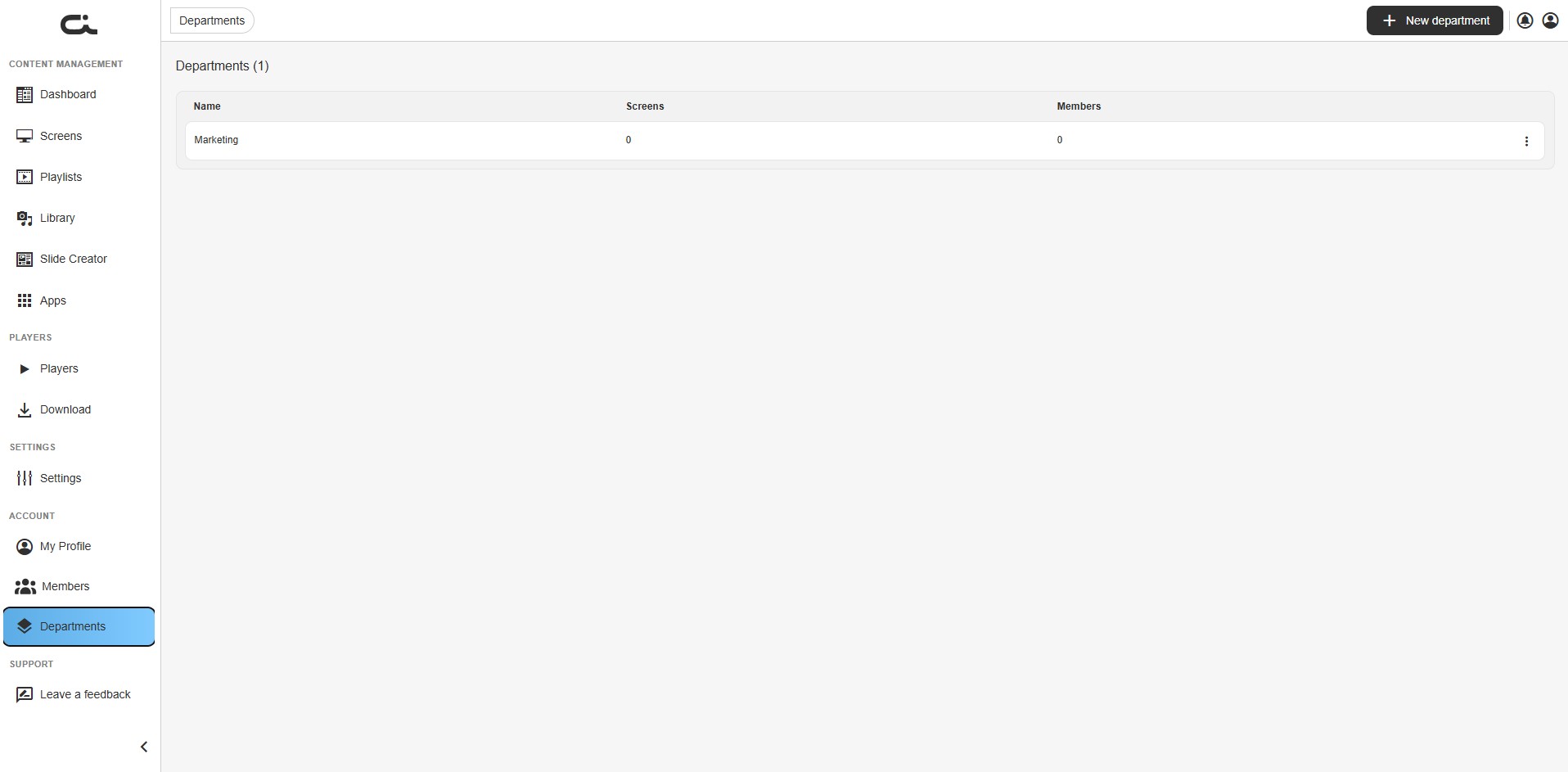
Each department is listed with its name, the number of screens inside it, and the number of members assigned to it. Edit and delete buttons sit next to each one. By default, every screen lands in the default department until you reassign it.
Click into a specific department to see two tabs:
- Assign members — a list of all members in your account. Select the ones who belong to this department and decide whether each can publish, then save.
- Screens — a list of all screens. Pick the ones that belong to this department.
A screen can only belong to one department at a time. This keeps ownership clean and avoids two teams both thinking they're in charge of the same screen.
Departments and Drafts in the Screens Section
When departments and the draft workflow are active, your screens carry new visual cues alongside the familiar tags and online/offline status.
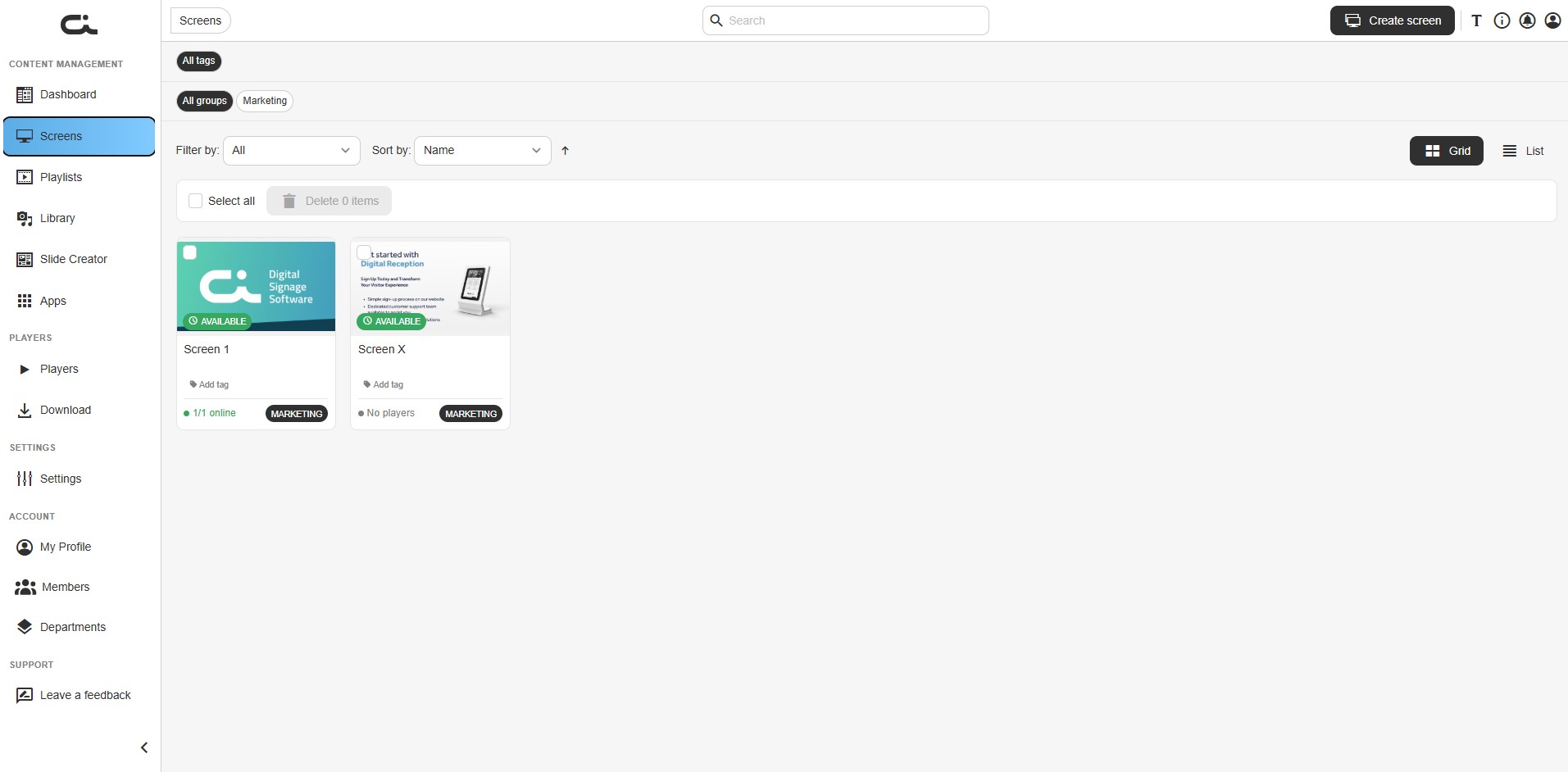
- Department label — shows which department the screen belongs to.
- Draft label — appears whenever a screen has unpublished changes waiting for review.
Both labels make it easy to scan a long list of screens and immediately see what's where and what needs attention.
Reviewing and Publishing Drafts
Open an individual screen that has pending changes, and you'll see a clear note that the screen has unpublished changes, along with two buttons:
- Publish — pushes the draft live to the screen's players.
- Discard draft — throws the draft away and keeps the current live content.
Until someone with publishing rights acts, the screen's players keep showing the current live content — no edit reaches the audience until it's approved.
Why This Matters
- Cleaner ownership. Members focus only on the screens they're responsible for — no clutter, no accidentally editing a display in another office.
- A safety net for live content. Nothing reaches a screen until someone with the right authority approves it, so typos, broken layouts, and outdated information get caught first.
- Speed without chaos. Trusted Moderators keep direct publishing rights, so urgent updates don't get stuck waiting for approval.
- Clear accountability. You can see who edited what and who approved it.
- Room to grow. The same structure works whether you have five screens or five hundred — start simple and add departments and approval steps as your team expands.
Turning It On
- Open the CMS and go to Settings → Permissions & workflow.
- Toggle on Organise screens into departments, Require approval before changes go live, or both, depending on what your team needs.
- If you enabled departments, head to Account → Departments to create departments and assign screens and members.
- In Account → Members, use the Can publish toggle to grant publishing rights where you want them.
You can switch the features off again at any time if you change your mind.
Next Steps
- System Settings — profile, system preferences, and slide transitions.
- Creating Screens — set up the screens you'll organize into departments.
- Navigation and Interface — find the Account section in the sidebar.