Screen Availability
Control when your screen is active and displaying content.
What is Screen Availability?
Screen Availability determines when a screen is operational and displaying content. This feature allows you to:
- Turn screens on/off automatically
- Save power during non-business hours
- Match screen operation to building schedules
- Prevent content display at inappropriate times
- Manage screen uptime efficiently
Accessing Availability Settings
- Navigate to Screens in the left sidebar
- Open your screen
- Click the Availability tab
Availability Settings Overview
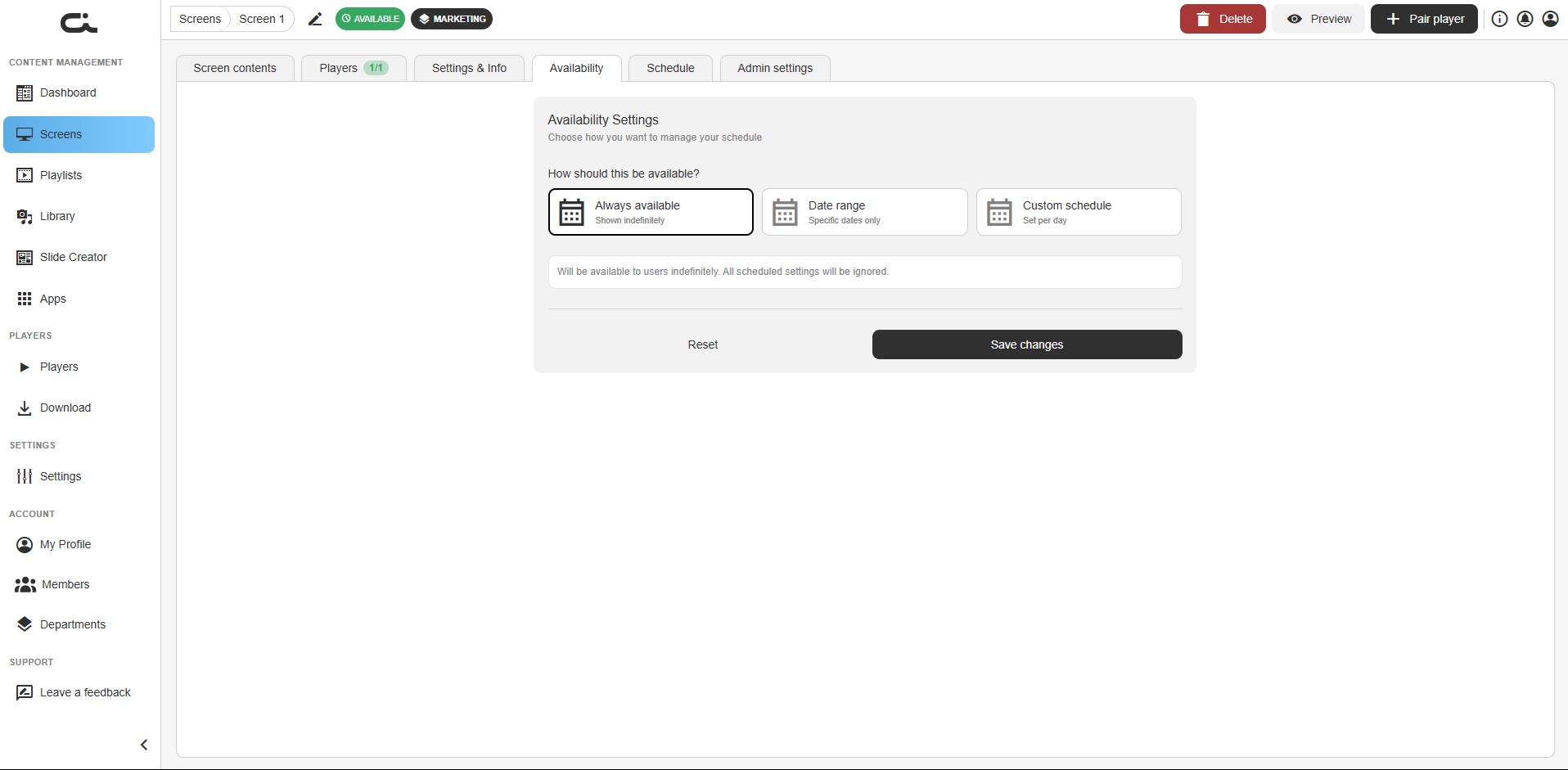
The Availability tab shows:
- Title: "Availability Settings"
- Description: "Choose how you want to manage your schedule"
- The prompt "How should this be available?" above three mode cards
- Three availability modes to choose from
- A description box below the cards that updates to explain the selected mode
- Configuration fields that appear for Date range and Custom schedule
- Reset (bottom-left) and Save changes (bottom-right) buttons
Availability Modes
Always Available
Icon: Calendar with checkmark
Description: "Shown indefinitely"
How It Works
- Screen is always active
- Displays content 24/7
- No automatic shutdowns
- Ignores schedule settings
When to Use
Best for:
- Locations with 24/7 operation
- Critical information displays
- Unmanned facilities
- Displays that should never turn off
- Simple setups without scheduling needs
Important Note
When "Always available" is selected:
"Will be available to users indefinitely. All scheduled settings will be ignored."
This means:
- Any existing schedules are disabled
- Screen stays on continuously
- No automatic power management
- You must manually manage the screen
Date Range
Icon: Calendar with date indicators
Description: "Specific dates only"
How It Works
- Screen is active only during specified date range
- Automatically turns on at start date
- Automatically turns off after end date
- Useful for temporary or seasonal displays
When to Use
Best for:
- Seasonal promotions
- Event-specific content
- Temporary installations
- Holiday displays
- Limited-time campaigns
- Trade show displays
Configuration
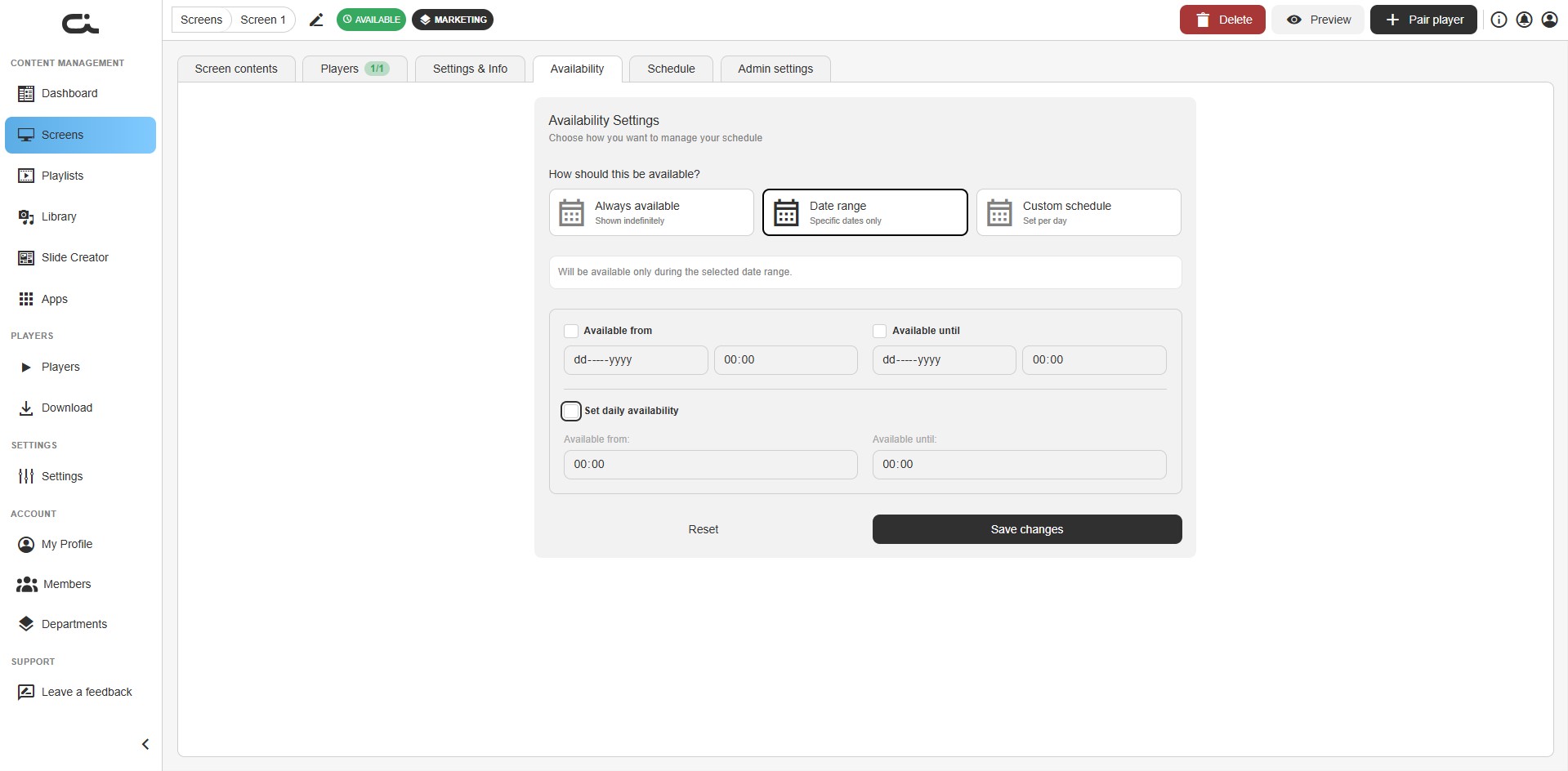
When you select Date range, the description box reads "Will be available only during the selected date range." and these fields appear:
- Available from — tick the checkbox, then set a date (
dd----yyyy) and a time (00:00) for when the screen becomes active - Available until — tick the checkbox, then set a date and time for when the screen deactivates
- Set daily availability — tick this checkbox to also limit each day within the range to a daily window, using the Available from / Available until time fields
The screen is active only between the start and end you set (and, if daily availability is on, only during the daily window). Outside this range it is inactive.
Example Use Cases
- Holiday Display: Dec 1 - Jan 5 for holiday content
- Summer Promotion: June 1 - Aug 31
- Event Signage: Oct 15 - Oct 17 for conference
- Seasonal Menu: March 1 - May 31 for spring menu
Custom Schedule
Icon: Calendar with schedule grid
Description: "Set per day"
How It Works
- Create detailed schedule with specific rules
- Different settings for different days
- Control by day of week
- Set specific operating hours
- Most flexible option
When to Use
Best for:
- Standard business hours
- Different weekend hours
- Complex scheduling needs
- Multiple time slots per day
- Varied weekly schedules
Configuration
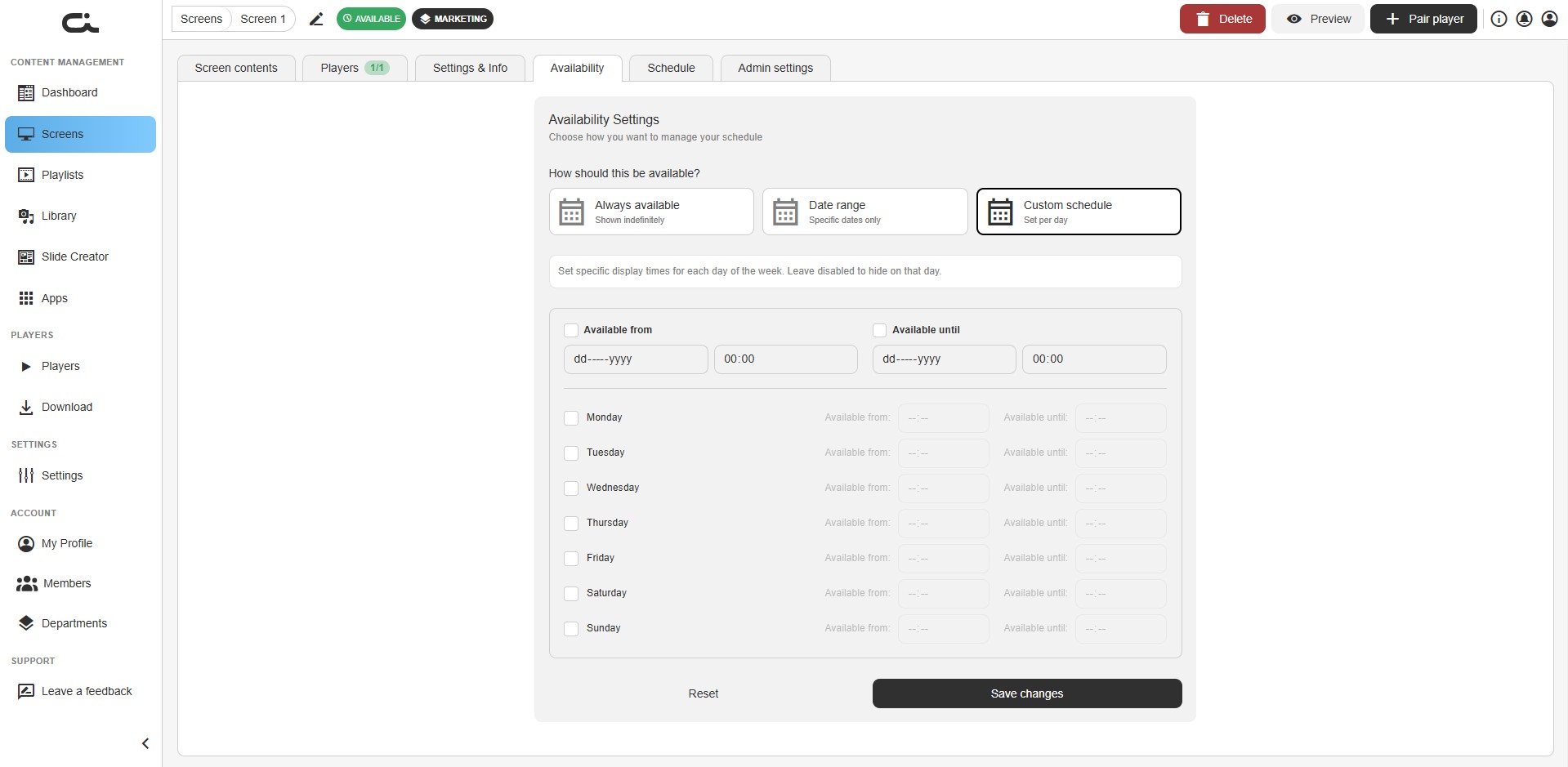
When you select Custom schedule, the description box reads "Set specific display times for each day of the week. Leave disabled to hide on that day." and these fields appear:
- Available from / Available until — optional overall bounds (a date
dd----yyyyand time00:00for each), limiting the whole schedule to a date range - A per-day list from Monday to Sunday. For each day:
- Tick the checkbox to enable that day
- Set its Available from and Available until times
- Leave a day's checkbox unticked to hide content on that day
This lets you build a recurring weekly pattern with different hours per day.
Example Use Cases
Retail Store:
Monday-Friday: 9am - 9pm
Saturday: 10am - 8pm
Sunday: 12pm - 6pm
Office Building:
Monday-Friday: 7am - 7pm
Saturday-Sunday: Off
Restaurant:
Monday-Thursday: 11am-2pm, 5pm-10pm
Friday-Saturday: 11am-11pm
Sunday: 11am-9pm
24/7 with Maintenance:
Monday-Sunday: All day
Tuesday: Off from 2am-4am (maintenance)
Selecting an Availability Mode
Changing Modes
- Click on the desired availability mode card
- Selected mode is highlighted
- Additional configuration options appear (if applicable)
- Review the description and behavior
- Click "Save changes" to apply
Mode Indicators
The selected mode will be:
- Highlighted with blue border or background
- Clearly marked as active
- Description shown below
Saving Changes
After selecting and configuring your availability mode:
- Review your settings
- Click "Save changes" button (bottom-right)
- Changes take effect immediately
- Players update automatically
Reset Option
- "Reset" button (bottom-left)
- Reverts unsaved changes
- Returns to last saved configuration
Important Considerations
Always Available Mode
Pros:
- Simple setup
- No schedule management
- Always operational
- Reliable for critical displays
Cons:
- No automatic power saving
- May waste energy during off-hours
- Displays content even when no audience
- No automatic downtime for maintenance
Date Range Mode
Pros:
- Perfect for temporary displays
- Automatic start and end
- Eliminates manual management
- Clear operational boundaries
Cons:
- Requires planning ahead
- Must update for recurring events
- All-or-nothing within date range
- No daily time control
Important: Remember to update or extend date ranges before they expire, or your screen will deactivate.
Custom Schedule Mode
Pros:
- Maximum flexibility
- Matches business hours
- Power savings during off-hours
- Different schedules per day
- Professional appearance (screen on when needed)
Cons:
- More complex to set up
- Requires schedule planning
- Must maintain and update
- Can be confusing if not documented
Relationship with Scheduled Content
Availability controls when the screen is on, while the Schedule tab controls what content displays when.
How They Work Together
- Availability determines if screen is active
- Schedule (separate tab) determines what content shows
- Both work together for complete control
Example:
- Availability: Monday-Friday, 8am-6pm (screen is on)
- Schedule: Morning content 8am-12pm, Afternoon content 12pm-6pm
Important Note
When "Always available" is selected:
- Scheduled content still works
- But screen never turns off
- Schedule just changes content, not availability
Best Practices
Choosing the Right Mode
Use Always Available when:
- 24/7 operation required
- Critical information displays
- Power management not a concern
- Simple setup preferred
Use Date Range when:
- Temporary or seasonal display
- Specific event or promotion
- Clear start and end dates
- Don't need daily time control
Use Custom Schedule when:
- Matching business hours
- Power savings important
- Complex scheduling needs
- Professional operations
Power and Energy
- Use schedules to reduce power consumption
- Turn off displays during closed hours
- Consider display lifespan (fewer hours = longer life)
- Reduce energy costs with smart scheduling
Planning Your Schedule
- Document business hours: Know when screen should operate
- Consider audience: When are people present?
- Plan maintenance windows: Schedule downtime for updates
- Test schedules: Verify timing before deploying
- Set reminders: Update date ranges before expiration
Coordination
- Coordinate with facilities: Match building hours
- Inform stakeholders: Communicate schedule changes
- Document schedules: Keep records of settings
- Review regularly: Adjust as business needs change
Troubleshooting
Screen Not Turning On
- Check availability mode is correct
- Verify date range hasn't expired
- Confirm custom schedule includes current time
- Check if player is online
- Ensure player has power
Screen Not Turning Off
- Verify availability mode isn't "Always available"
- Check custom schedule end times
- Ensure date range hasn't been extended
- Confirm settings were saved
- Try manual restart of player
Schedule Not Working
- Verify you're on correct tab (Availability vs Schedule)
- Check availability allows screen to be on
- Confirm timezone settings are correct
- Ensure schedules were saved
- Check for conflicting settings
Date Range Expired
- Screen automatically deactivates after end date
- Set new date range to reactivate
- Or switch to different availability mode
- Update before expiration to avoid downtime
Next Steps
After configuring availability:
- Scheduling Content - Set up time-based content changes
- Screen Settings - Configure display options
- Adding Content - Manage screen content
- Pairing Players - Connect display devices