Download Player Software
Castit player software is available for multiple platforms, making it easy to run digital signage on virtually any device. Download the player for your operating system and start displaying content on your screens.
Accessing the Download Page
Click Download in the left sidebar to access the download page. This page is available from any section of Castit.
Why Castit?
The Download page opens with a quick reminder of what makes Castit the smart way to manage your digital screens — turn any display into a powerful communication channel, share updates, engage your audience, and stay in control at all times.
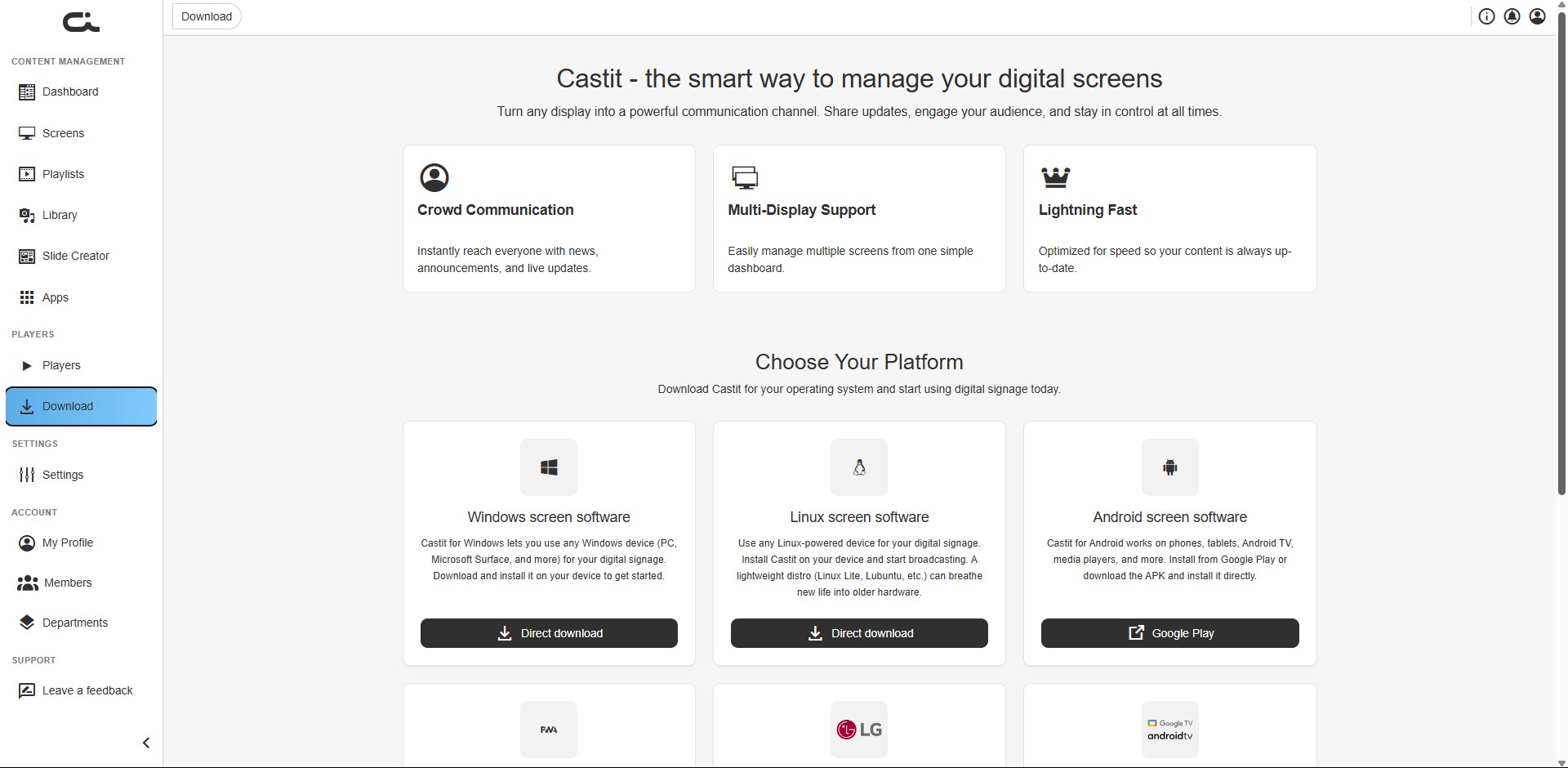
Crowd Communication Instantly reach everyone with news, announcements, and live updates across all your displays.
Multi-Display Support Easily manage multiple screens from one simple dashboard.
Lightning Fast Optimized for speed so your content is always up-to-date.
Choose Your Platform
Below the benefits, the Choose Your Platform section presents a grid of cards — one per platform. Each card has a short description and an action button: Direct download for desktop installers, Google Play or an app-store link for TV and mobile platforms, or Open web screen software for the browser player.
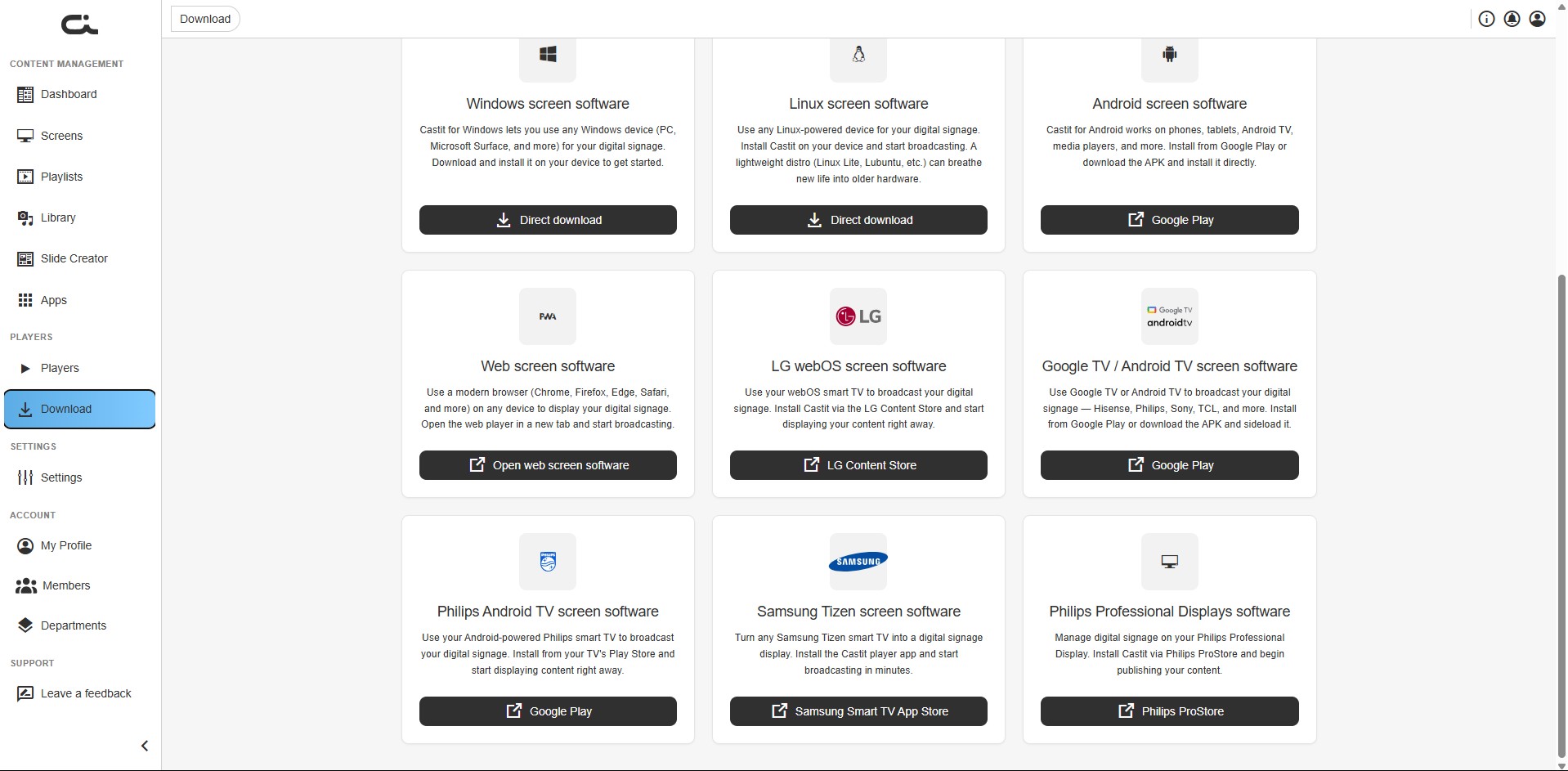
Castit supports a wide range of platforms, ensuring compatibility with most devices and smart displays. The sections below describe each platform — what it's best for and where to get the player. For step-by-step installation instructions, see Installation Guides further down the page.
Windows
Card: Windows screen software — "Castit for Windows lets you use any Windows device (PC, Microsoft Surface, and more) for your digital signage. Download and install it on your device to get started."
Best for: Desktop computers, Windows-based media players, commercial displays with built-in Windows PCs
Download: Click Direct download to get the latest Windows installer. See the Windows installation guide for setup steps.
System Requirements:
- Windows 10 or later recommended
- Internet connection for content updates
- Graphics card with display output
Typical Use Cases:
- Office displays using existing Windows computers
- Retail displays with Windows mini PCs
- Conference room screens connected to Windows devices
Linux
Card: Linux screen software — "Use any Linux-powered device for your digital signage. Install Castit on your device and start broadcasting. A lightweight distro (Linux Lite, Lubuntu, etc.) can breathe new life into older hardware."
Best for: Linux servers, Ubuntu-based systems, custom hardware setups, repurposed older PCs
Download: Click Direct download to get the latest Linux build. See the Linux installation guide for setup steps.
System Requirements:
- Modern Linux distribution (Ubuntu, Debian, Fedora, etc.)
- Internet connection for content updates
- Display output capability
Typical Use Cases:
- Server rooms running Linux infrastructure
- Cost-effective digital signage on Linux hardware
- Custom kiosk setups with Linux
Android
Card: Android screen software — "Castit for Android works on phones, tablets, Android TV, media players, and more. Install from Google Play or download the APK and install it directly."
Best for: Android tablets, Android TV boxes, Android-based commercial displays, phones
Download: Click Google Play to install from the Play Store, or sideload the APK if your device has no Play Store. See the Android installation guide for setup steps and recommended TV settings.
System Requirements:
- Android 7.0 or later recommended
- Internet connection for content updates
- Sufficient storage for media content
Typical Use Cases:
- Repurposing Android tablets as displays
- Android TV boxes connected to monitors
- Commercial displays with built-in Android
Running on an Android TV or smart TV? See Recommended Android TV settings in the installation guide to stop the screen sleeping and keep the player running.
Web (Browser Player)
Card: Web screen software — "Use a modern browser (Chrome, Firefox, Edge, Safari, and more) on any device to display your digital signage. Open the web player in a new tab and start broadcasting."
Best for: Quick testing, browser-based displays, Raspberry Pi, devices without dedicated apps
Access: Click Open web screen software to launch the browser-based player in a new tab. See the Web player and Raspberry Pi installation guide for setup steps.
System Requirements:
- Modern web browser (Chrome, Firefox, Safari, Edge)
- Internet connection
- Browser in fullscreen mode for best display
Typical Use Cases:
- Testing content before deploying to dedicated players
- Displays where you can't install software
- Running on a Raspberry Pi via its browser
- Temporary or occasional displays
Raspberry Pi: Open the web player in the Raspberry Pi's browser and switch to fullscreen — a flexible, cost-effective option that works even if the Pi is already used for other tasks.
LG webOS
Card: LG webOS screen software — "Use your webOS smart TV to broadcast your digital signage. Install Castit via the LG Content Store and start displaying your content right away."
Best for: LG commercial and smart displays with built-in webOS
Download: Click LG Content Store, or get the Castit app directly from the LG Content Store on your LG webOS display. See the LG webOS installation guide for setup steps.
Why LG webOS:
- No external player hardware needed
- Built-in connectivity and performance
- Native app optimized for LG displays
Google TV / Android TV
Card: Google TV / Android TV screen software — "Use Google TV or Android TV to broadcast your digital signage — Hisense, Philips, Sony, TCL, and more. Install from Google Play or download the APK and sideload it."
Best for: Google TV and Android TV devices and built-in smart TVs (Hisense, Sony, TCL, and others)
Download: Click Google Play to install from the Play Store, or sideload the APK on devices without it. Installation follows the Android installation guide.
Typical Use Cases:
- Smart TVs running Google TV / Android TV
- Streaming devices connected to a monitor
- Mixed-brand fleets sharing one app
See Recommended Android TV settings in the installation guide to stop the screen sleeping and keep the player running.
Philips Android TV
Card: Philips Android TV screen software — "Use your Android-powered Philips smart TV to broadcast your digital signage. Install from your TV's Play Store and start displaying content right away."
Best for: Philips smart TVs running Android TV
Download: Click Google Play to install from the TV's Play Store.
Samsung Tizen
Card: Samsung Tizen screen software — "Turn any Samsung Tizen smart TV into a digital signage display. Install the Castit player app and start broadcasting in minutes."
Best for: Samsung commercial and smart displays with built-in Tizen OS
Download: Click Samsung Smart TV App Store and install the Castit app directly on your Samsung Tizen display. See the Samsung Tizen installation guide for setup steps.
Why Samsung Tizen:
- Integrated solution without external hardware
- Reliable commercial-grade performance
- Easy management from Samsung displays
The native Samsung Tizen app is currently available on the U.S. market only. Support for other markets is in progress and will follow soon. In the meantime, the web player works on any Tizen TV as an alternative.
Philips Professional Displays
Card: Philips Professional Displays software — "Manage digital signage on your Philips Professional Display. Install Castit via Philips ProStore and begin publishing your content."
Best for: Philips Professional Displays (commercial signage range)
Download: Click Philips ProStore and install the Castit app from the Philips ProStore on your display.
Platform Comparison
| Platform | How to Install | Best Performance | Easiest Setup | Cost-Effective |
|---|---|---|---|---|
| Windows | Direct download | ⭐⭐⭐⭐ | ⭐⭐⭐ | ⭐⭐ |
| Linux | Direct download | ⭐⭐⭐⭐ | ⭐⭐ | ⭐⭐⭐⭐ |
| Android | Google Play / APK | ⭐⭐⭐⭐ | ⭐⭐⭐⭐ | ⭐⭐⭐ |
| Web (Browser) | No install | ⭐⭐⭐ | ⭐⭐⭐⭐⭐ | ⭐⭐⭐⭐⭐ |
| Raspberry Pi (Web) | No install | ⭐⭐⭐ | ⭐⭐⭐⭐ | ⭐⭐⭐⭐⭐ |
| LG webOS | LG Content Store | ⭐⭐⭐⭐⭐ | ⭐⭐⭐⭐⭐ | ⭐⭐⭐⭐⭐ |
| Google TV / Android TV | Google Play / APK | ⭐⭐⭐⭐ | ⭐⭐⭐⭐ | ⭐⭐⭐⭐ |
| Philips Android TV | Google Play | ⭐⭐⭐⭐ | ⭐⭐⭐⭐⭐ | ⭐⭐⭐⭐⭐ |
| Samsung Tizen | Samsung Smart TV App Store | ⭐⭐⭐⭐⭐ | ⭐⭐⭐⭐⭐ | ⭐⭐⭐⭐⭐ |
| Philips Professional Displays | Philips ProStore | ⭐⭐⭐⭐⭐ | ⭐⭐⭐⭐⭐ | ⭐⭐⭐⭐⭐ |
Installation Guides
Follow the guide for your platform to install and launch the Castit player. Every platform ends the same way: the player shows a 5-digit pairing code that you enter in the CMS to connect it to a screen (see After Downloading).
Windows Installation
- Click Direct download on the platform card to download the Windows player. It arrives as a ZIP archive.
- Open the downloaded ZIP file, then choose Extract All and confirm the destination folder.
- Wait for the extraction to finish, then open the extracted folder and double-click
start-player.bat. - If Windows prompts you to install .NET Framework 3.5, click Install and let it complete — the player needs it to run.
- Accept any Windows permission or access prompts that appear so the player can install and run correctly.
- Wait for the setup to finish.
- The Castit player launches and displays its pairing code.
The permission and .NET prompts only appear the first time you run the player on a device. On later launches, the player starts straight to the pairing screen.
Linux Installation
-
Click Direct download on the platform card to download the Linux player as a ZIP archive.
-
Open the ZIP file, choose Extract All, and confirm the destination folder.
-
Wait for the extraction to complete. The extracted folder contains a
start.shlaunch script. -
Launch the player by running
start.shfrom a terminal:cd /path/to/extracted-folder
chmod +x start.sh
./start.sh -
The Castit player launches and displays its pairing code.
For an unattended display that should start on boot, set start.sh as an automatic launcher (for example, an autostart entry or a systemd service) so the player relaunches whenever the device powers on.
Android Installation
Castit for Android works on phones, tablets, Android TV boxes, and Android-powered smart TVs.
- Open the Google Play Store on your Android device and install the Castit player — or, if the device has no Play Store, download the APK from the platform card and install it directly.
- Installation takes a couple of minutes.
- The player starts automatically after installation and displays its pairing code.
For a TV, make sure it has an internet connection before pairing.
Recommended Android TV Settings
If your Android screen turns off or the player does not stay open, adjust the power and app settings below. Menu names vary by manufacturer, so use the path that matches your device.
Keep the screen awake:
- Settings > Device Preferences > Screensaver > Put device to sleep > Never
- Settings > Screensaver > Put device to sleep > Never
- Settings > Daydream > When to sleep > Never
Disable sleep timers:
- Settings > Sleep timer > Off
- Settings > Timers > Sleep timer > Off
- Settings > Apps > Timers > Sleep timer > Off
- Settings > Device Preferences > Screensaver > Sleep Timer > Off
Disable idle standby and auto shut-off:
- Settings > Device Preferences > Power > Idle TV standby > Off
- Settings > BRAVIA settings > Eco > Idle TV standby > Off
- Settings > Power > Eco > Idle TV standby > Off
- Settings > System > Power & Energy > Idle TV power off > Off
- Settings > System > Power & Energy > Energy Saver > Turn Off TV After > Never
- Settings > Device Preferences > Power > Auto shut-off > Off
- Settings > BRAVIA settings > Eco > Auto shut-off > Off
- Settings > System > Power and Energy > Auto shut-off > Off
- Settings > Device Preferences > Power and Energy > Auto shut-off > Off
Enable Castit auto-start:
- Settings > Apps > Special app access > Display over other apps > Castit: Digital Signage Player > Allowed
- Settings > Apps > Special app access > Energy optimization > Castit: Digital Signage Player > Not Optimised
Allow the app to turn the screen on (Android TV):
- Settings > Apps > Special app access > Turn screen on > Castit: Digital Signage Player > Allowed
Enable player options inside the app:
Open the Castit player, press the up button on your remote, then go to Settings and enable:
- Enable player auto start — launches the player when the TV turns on
- Enable foreground — reopens the player if it is closed
TCL Android Smart TV (Safety Guard):
Some TCL models block auto-start. Update permissions here:
- Safety Guard > Permission Shield > Auto Launch Permission
- Set Auto Manager to Closed
- Set Castit: Digital Signage Player to Opened
Web (Browser Player) & Raspberry Pi Installation
The web player runs in a modern browser, so there's nothing to install.
- Click Open web screen software on the platform card to launch the browser-based player in a new tab.
- Switch the browser to fullscreen for a clean, edge-to-edge display.
- The player displays its pairing code, ready to enter in the CMS.
Raspberry Pi: Open the web player in the Raspberry Pi's browser and switch to fullscreen. This is a flexible, cost-effective option that works even if the Pi is already handling other tasks.
Samsung Tizen Installation
- Open the Samsung Smart TV App Store on your Samsung Tizen display.
- Find the Castit player.
- Select Install and start the app — this takes a couple of minutes.
- The player launches and displays its pairing code.
Make sure the TV has an internet connection before pairing.
The native Samsung Tizen app is currently available on the U.S. market only. Support for other markets is in progress and will follow soon. On Tizen TVs in other regions, use the web player as an alternative.
LG webOS Installation
- Open the LG Content Store on your LG webOS display.
- Find the Castit player.
- Select Install and start the app — this takes a couple of minutes.
- The player launches and displays its pairing code.
Requirements:
- LG smart TV running webOS 3.0 or higher (recommended)
- Internet connection for the TV
Alternative: You can also find the app at the LG App TV Store.
Philips Displays Installation
- Philips Android TV: Open the Google Play Store on the TV and install the Castit player. Setup follows the Android installation guide.
- Philips Professional Displays: Open the Philips ProStore on the display, install the Castit app, then launch it to get your pairing code.
After Downloading
Once you've downloaded and installed the player software:
- Launch the player on your device
- Note the pairing code displayed on the screen (5-digit code)
- Go to Castit CMS and create or open a screen
- Navigate to the Players tab in your screen
- Enter the pairing code to connect the player to your screen
- Start displaying content immediately
Not sure which platform to choose? If you already have hardware, use the platform it runs. If you're buying new hardware, consider Android TV boxes or Raspberry Pi for cost-effectiveness, or LG/Samsung commercial displays for all-in-one solutions.
Related Guides
Once the player is installed and showing its pairing code:
- Pairing Players — how to connect your player to a screen
- Managing Players — monitor, configure, and troubleshoot connected players
Need Help?
If you have questions about which platform to choose or need assistance with installation:
- Click Contact us! in the top navigation bar
- Use Leave a feedback in the sidebar to ask specific questions
- Check the FAQ section for common questions
Next Steps
After downloading and installing your player:
- Pair your player to a screen
- Add content to your screen
- Create a schedule for time-based content