Creating and Managing Playlists
Learn how to create and manage playlists for reusable content sequences.
What are Playlists?
Playlists in Castit are reusable collections of content that play in sequence. They allow you to:
- Group related content together
- Create reusable content sequences
- Assign the same content to multiple screens
- Manage content centrally
- Update content across all screens using that playlist
Playlists vs. Screen Contents
Playlists:
- Reusable collections stored in the Playlists section
- Can be assigned to multiple screens
- Update once, affects all screens using it
- Managed centrally
Screen Contents:
- Content assigned directly to a specific screen
- Unique to that screen
- Can include playlists, library items, apps, and slides
Accessing Playlists
- Click Playlists in the left sidebar
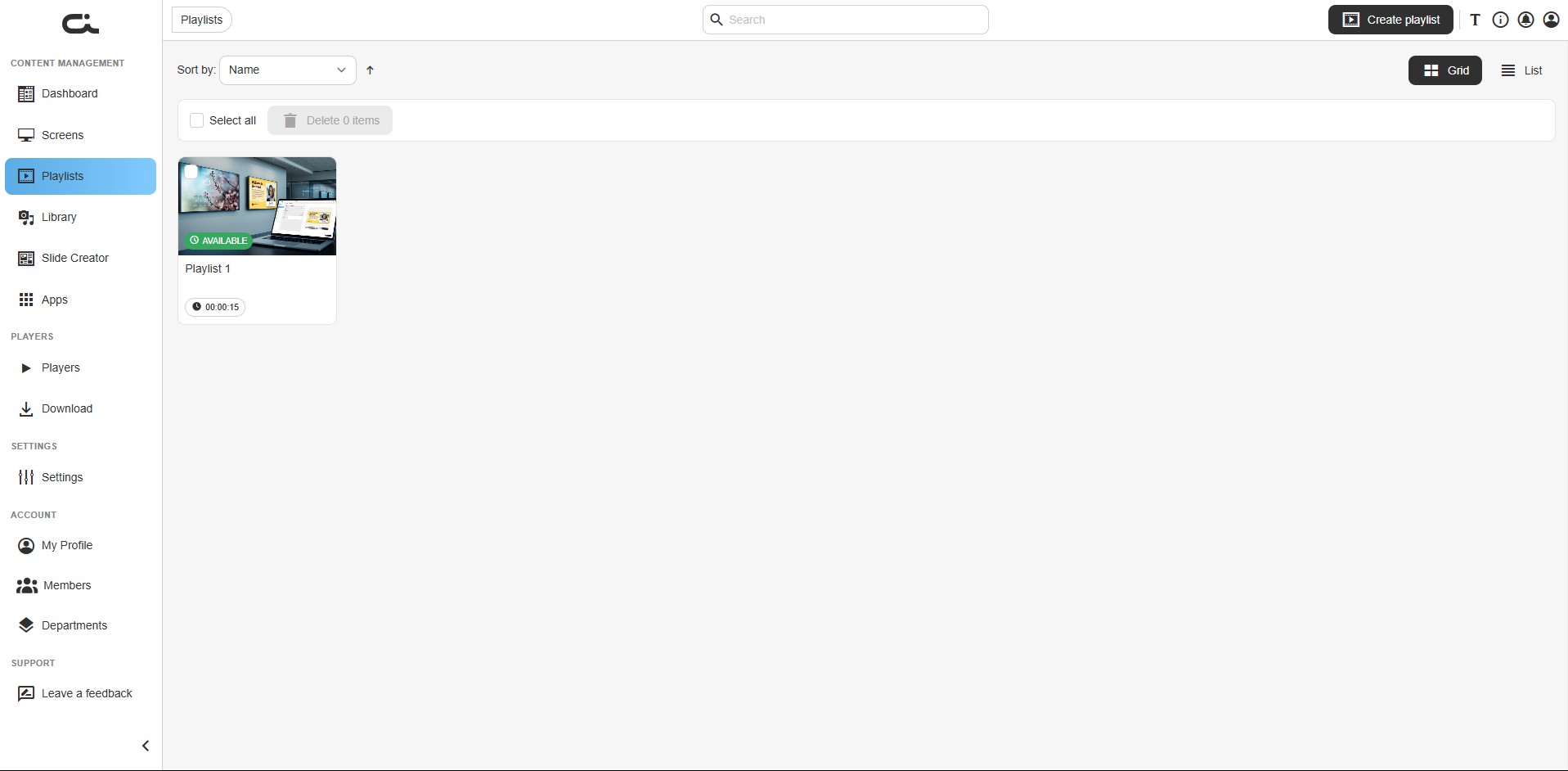
- You'll see the playlists list view with:
- Search bar (top center)
- Sort by: Name dropdown with an ascending/descending arrow
- Select all checkbox and Delete [n] items for bulk actions
- Grid / List view toggle (top-right)
- Create playlist button (top-right)
Playlists List View
Empty State
When you have no playlists yet, you'll see:
- "No playlists yet" message
- "Create your first playlist to get started. You can add images, videos, and other media files to your playlist."
- "Create a playlist" button (center)
With Playlists
Once you have playlists, they display as cards showing:
- Thumbnail - Preview of the playlist content
- Status badge - Green AVAILABLE badge when the playlist is ready to use
- Playlist name
- Duration - Total playback time (e.g., "00:00:15")
Hover over a card and click the ⋮ (three-dot) menu in its top-right corner for quick actions:
- Edit - Open the playlist editor
- Rename playlist
- Preview
- Duplicate
- Delete
Creating a New Playlist
Step 1: Open Create Dialog
Click either:
- "Create a playlist" button (center, when no playlists exist)
- "Create playlist" button (top-right corner)
Step 2: Name Your Playlist
The "Create playlist" dialog appears:
- Dialog title: "Create playlist"
- Instructions: "Create playlist by setting the name first."
- Name field: Enter your playlist name
- Placeholder: "New playlist"
- Required field
Step 3: Create the Playlist
- Enter a descriptive name
- Click "Create" button
- Playlist is created and opens automatically
Or click "Cancel" to abort creation.
Naming Best Practices
Use clear, descriptive names:
- Purpose-based: "Morning Announcements", "Lunch Menu", "Safety Tips"
- Location-based: "Lobby Content", "Break Room Entertainment"
- Time-based: "Weekday Schedule", "Weekend Promotions"
- Campaign-based: "Q4 Sale", "Holiday 2025", "New Product Launch"
Playlist Detail View
After creating a playlist, you see the playlist editor with three tabs:
Tab 1: Playlist contents
Manage the content in your playlist and its playback order.
Tab 2: Settings & Info
Set the playlist orientation and see which screens use this playlist.
Tab 3: Availability
Control when the playlist is available for use.
The breadcrumb at the top (Playlists > [Playlist name]) shows where you are. Click the pencil icon next to the name to rename the playlist, and use the Delete, Preview, and Duplicate buttons in the top-right corner.
Adding Content to Playlists
Playlist Contents Tab
The main workspace for building your playlist:
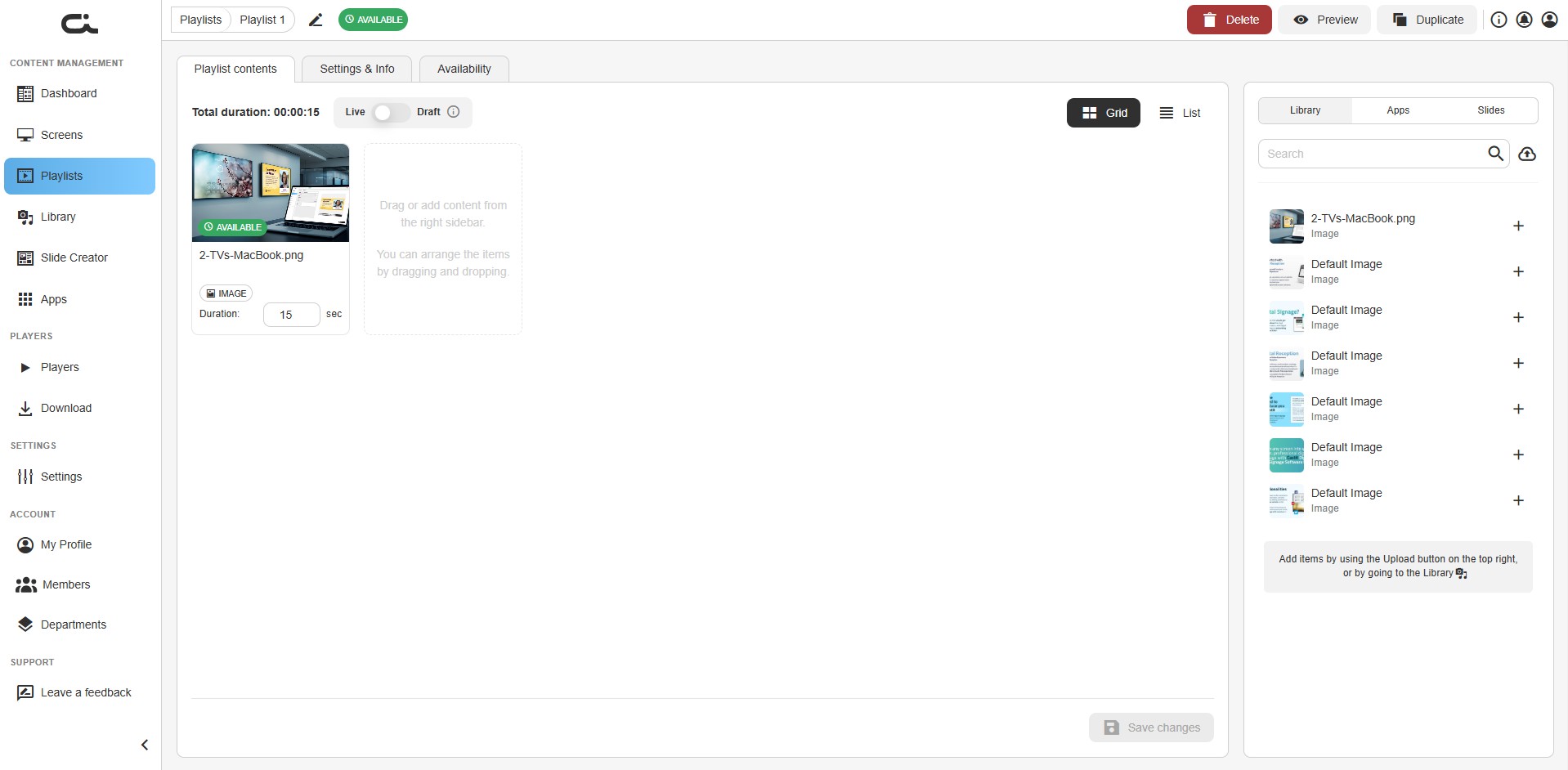
Left Side: Content Canvas
- Drag and drop area for content items
- Total duration displayed at top (e.g., "00:00:15")
- Live / Draft toggle - switch between the published (Live) version and your work-in-progress (Draft) version
- Grid / List toggle to change how content items are displayed
- Content items show as cards with:
- Thumbnail preview
- Content name
- Type badge (IMAGE, VIDEO, etc.)
- Editable Duration field (in seconds)
- Save changes button (bottom-right) to persist your edits
Right Side: Content Sidebar
Three tabs to access content, plus a search field with an upload (↑) button:
Library Tab (default)
- Browse your uploaded media
- Images and videos
- Search functionality
- Click + to add items
- Hint shown: "Add items by using the Upload button on the top right, or by going to the Library"
Apps Tab
- Available app integrations
- Social media feeds
- Business intelligence widgets
- Interactive content
Slides Tab
- Custom-created slides
- Designed in Slide Creator
- Graphics and text content
Adding Content Methods
Method 1: Click to Add
- Browse content in the right sidebar
- Click the + (plus) button next to any item
- Content is added to the playlist canvas
Method 2: Drag and Drop
- Click and drag an item from the sidebar
- Drop it onto the playlist canvas
- Content appears in the sequence
Content Types in Playlists
Images
- JPEG, PNG, GIF files
- Badge: IMAGE
- Set custom duration (seconds)
- Example: "Default Image" - 8 seconds
Videos
- MP4, AVI, MOV files
- Badge: VIDEO
- Duration is video length
- Example: "FrontAssist-Digital-Reception-Video-v1.mp4" - 208 seconds
Apps
- Dynamic content widgets
- Real-time data
- Social media feeds
Slides
- Custom-created graphics
- Text and image combinations
- Professional signage content
Managing Playlist Content
Arranging Content Order
To change playback sequence:
- Click and hold a content item
- Drag to desired position
- Drop in place
- Content plays in left-to-right, top-to-bottom order
Setting Duration
Each content item has a Duration field:
- Locate the duration input (shows seconds)
- Enter desired duration in seconds
- Duration updates automatically
Example durations:
- Images/Slides: 8-15 seconds
- Videos: Full video length (auto-detected)
- Apps: Based on refresh rate
Total Duration
The "Total duration" appears at the top:
- Format: HH:MM:SS
- Example: "00:03:36" (3 minutes, 36 seconds)
- Represents complete playlist loop time
Removing Content
To remove an item:
- Hover over the content card
- Click delete/remove icon (typically X or trash)
- Item is removed from playlist
Empty Content State
When playlist has no content:
Drag or add content from
the right sidebar.

You can arrange the items
by dragging and dropping.
Indicates:
- Playlist is ready for content
- Use right sidebar to add items
- Drag and drop to arrange
Playlist Settings & Info
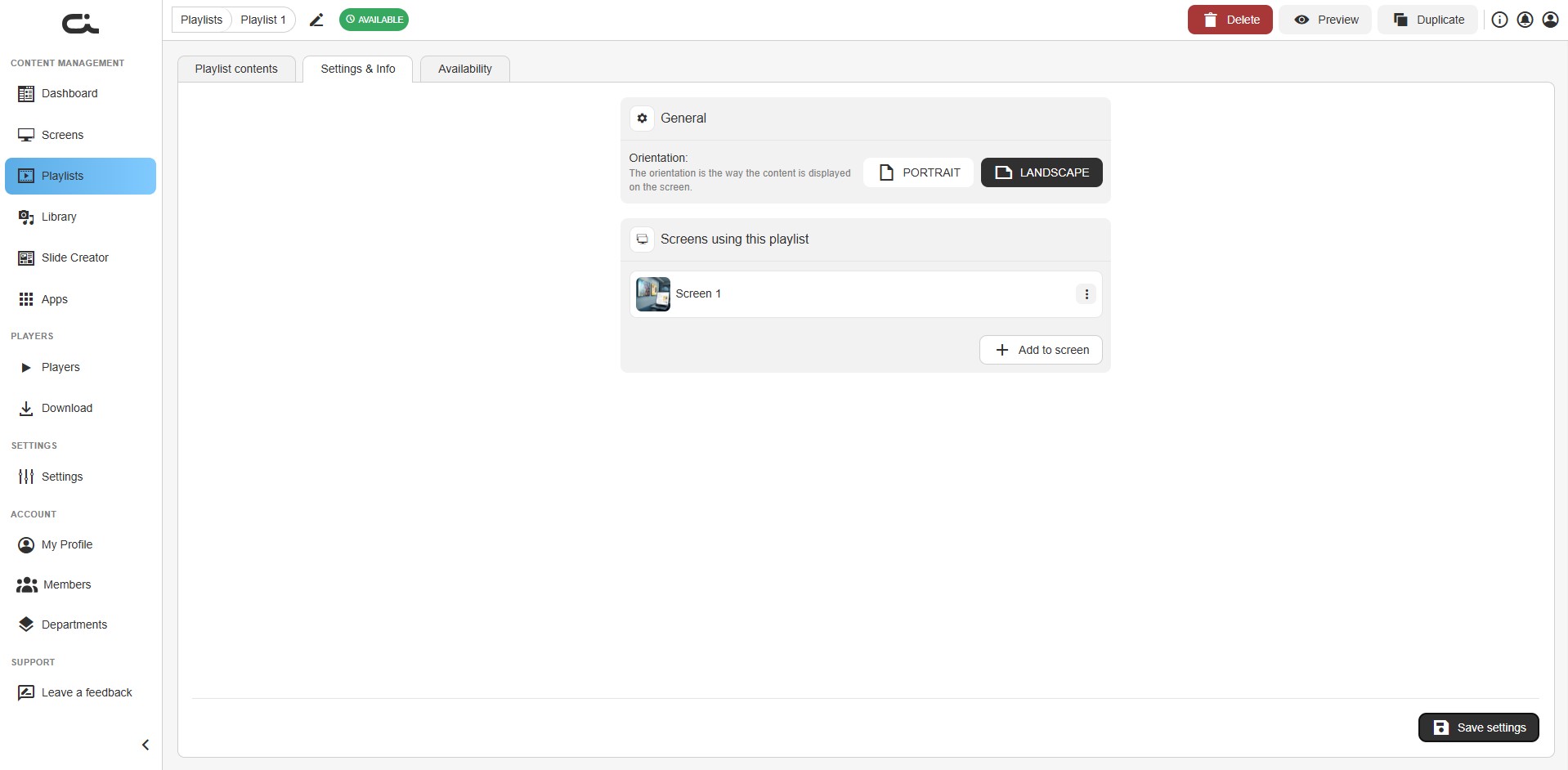
The Settings & Info tab controls how the playlist is displayed and shows where it's used.
General
Orientation - Choose how the content is displayed on the screen:
- PORTRAIT - Vertical (taller than wide)
- LANDSCAPE - Horizontal (wider than tall)
Pick the orientation that matches the physical displays the playlist will run on.
Screens using this playlist
This section lists every screen the playlist is currently assigned to. From here you can:
- See each screen using the playlist (with its thumbnail and name)
- Use the ⋮ menu next to a screen for screen-specific actions
- Click + Add to screen to assign this playlist to another screen directly
Click Save settings (bottom-right) to apply changes.
Playlist Availability
Availability Tab
Controls when the playlist can be used on screens.
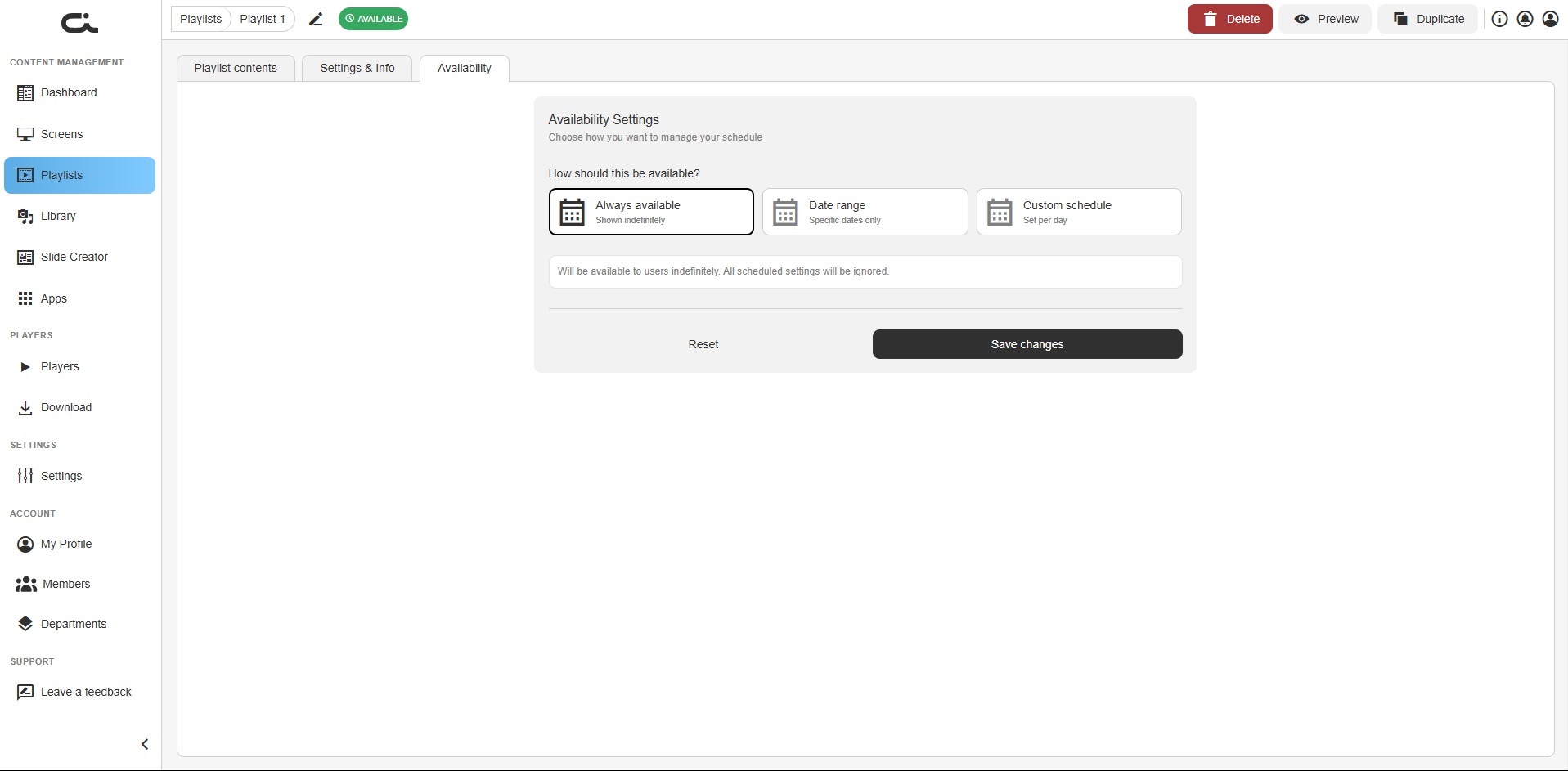
Under Availability Settings ("Choose how you want to manage your schedule"), the question "How should this be available?" offers three modes:
Always Available (Selected by Default)
- Description: "Shown indefinitely"
- Playlist always available for use
- No time restrictions
- Most common setting
Note displayed:
"Will be available to users indefinitely. All scheduled settings will be ignored."
Date Range
- Description: "Specific dates only"
- Playlist available only during date range
- Useful for seasonal or campaign-specific playlists
Custom Schedule
- Description: "Set per day"
- Control availability by day/time
- Complex scheduling patterns
Saving Availability Settings
- Select desired availability mode
- Click "Save changes" button
- Or click "Reset" to revert changes
Playlist Actions
Top-Right Action Buttons
When viewing a playlist, the top-right corner of the editor gives you access to (the same actions are available from the ⋮ menu on each playlist card in the list view):
Delete (Red trash icon)
- Remove the playlist
- Confirms before deletion
- Affects screens using this playlist
Preview (Eye icon)
- Preview playlist playback
- See content sequence
- Check timing and transitions
Duplicate
- Create a copy of the playlist
- Useful for creating variations
- Can rename and modify the copy
Edit Playlist Name
Click the pencil/edit icon next to the playlist name to rename it.
Playlist Status
- "AVAILABLE" badge (green) - Playlist is ready to use
- Indicates playlist can be assigned to screens
Using Playlists on Screens
Once created, playlists can be:
-
Assigned to Screens
- Go to Screens > Screen contents
- Select the Playlist tab in the sidebar
- Add the playlist to the screen
- Or, from the playlist's Settings & Info tab, use + Add to screen
-
Updated Centrally
- Changes to playlist affect all screens using it
- Update once, deploys everywhere
- Efficient content management
-
Reused Multiple Times
- Same playlist on multiple screens
- Consistent content across locations
- Easier to maintain
Best Practices
Playlist Organization
-
Create Purpose-Specific Playlists
- Don't mix unrelated content
- Keep focused on theme or purpose
- Easier to manage and update
-
Logical Naming
- Use clear, descriptive names
- Include purpose or location
- Make it searchable
-
Appropriate Length
- 2-5 minutes typical
- Not too short (looks repetitive)
- Not too long (never completes)
-
Content Mix
- Vary content types
- Mix images and videos
- Include dynamic content (apps)
- Keep it engaging
Duration Settings
Images and Slides:
- 8-15 seconds each
- Enough time to read
- Not too long (boring)
Videos:
- Full video length
- Don't cut videos short
- Consider video pacing
Total Playlist:
- 2-5 minutes common
- Consider audience dwell time
- Match to location needs
Content Quality
- Use high-resolution images
- Optimize file sizes
- Test on actual displays
- Ensure readability from viewing distance
Maintenance
-
Regular Updates
- Keep content fresh
- Remove outdated items
- Add new content regularly
-
Test Before Deploying
- Preview playlist
- Check duration and pacing
- Verify all content displays correctly
-
Monitor Performance
- Check screens using playlist
- Verify content plays correctly
- Adjust based on feedback
Common Use Cases
Restaurant Menu Board Playlist
Playlist: "Lunch Menu Items"
Duration: 3 minutes

- Appetizers slide (10 sec)
- Soup of the day photo (8 sec)
- Entrée 1 photo (10 sec)
- Entrée 2 photo (10 sec)
- Entrée 3 photo (10 sec)
- Desserts slide (12 sec)
- Drinks menu slide (10 sec)
- Daily special video (60 sec)
- Restaurant ambiance video (50 sec)
Corporate Announcements Playlist
Playlist: "Office Updates - Weekly"
Duration: 4 minutes

- Welcome slide (10 sec)
- Company news slide (15 sec)
- This week's events (12 sec)
- Employee spotlight photo (10 sec)
- Safety reminder slide (12 sec)
- IT updates slide (15 sec)
- Upcoming holidays slide (10 sec)
- LinkedIn feed app (30 sec)
- Company values video (90 sec)
- Thank you slide (10 sec)
Retail Promotion Playlist
Playlist: "Weekend Sale"
Duration: 2.5 minutes

- Sale banner slide (8 sec)
- Featured product 1 photo (10 sec)
- Featured product 2 photo (10 sec)
- Featured product 3 photo (10 sec)
- Discount details slide (12 sec)
- Customer testimonial (10 sec)
- Facebook feed (30 sec)
- Store hours slide (10 sec)
- Promotional video (60 sec)
Troubleshooting
Can't Create Playlist
- Check account permissions
- Verify you're logged in
- Try refreshing browser
- Contact support if issue persists
Content Not Adding
- Check content exists in library
- Verify content isn't corrupted
- Try different content item
- Check browser console for errors
Duration Not Saving
- Enter valid number (seconds)
- Check for error messages
- Ensure changes are saved
- Try refreshing and re-entering
Playlist Not Appearing on Screens
- Verify playlist availability settings
- Check screen's playlist tab
- Ensure playlist has content
- Confirm playlist status is "Available"
Next Steps
After creating playlists:
- Adding Content to Screens - Assign playlists to screens
- Managing Your Content Library - Add more content to use in playlists
- Using the Slide Creator - Create custom slides for playlists
- Using Apps - Add dynamic content to playlists