Pairing Players
Learn how to connect physical player devices to your screens.
What is Player Pairing?
Player pairing connects a physical device running the Castit player software to a virtual screen in your CMS. Once paired:
- The physical display shows content from the screen
- You can monitor player status remotely
- Content updates automatically sync to the player
- You can manage the player through the CMS
Before You Start
Ensure you have:
- Created a screen in Castit CMS
- Downloaded the appropriate Castit player for your device
- Physical display connected to the device
- Device connected to the internet
- Screen content configured (recommended but not required)
Accessing Player Pairing
- Navigate to Screens in the left sidebar
- Open the screen you want to pair
- Click the Players tab
Pairing Process Overview
The Players tab has a "Pair a player with your screen" setup section that walks you through three steps:
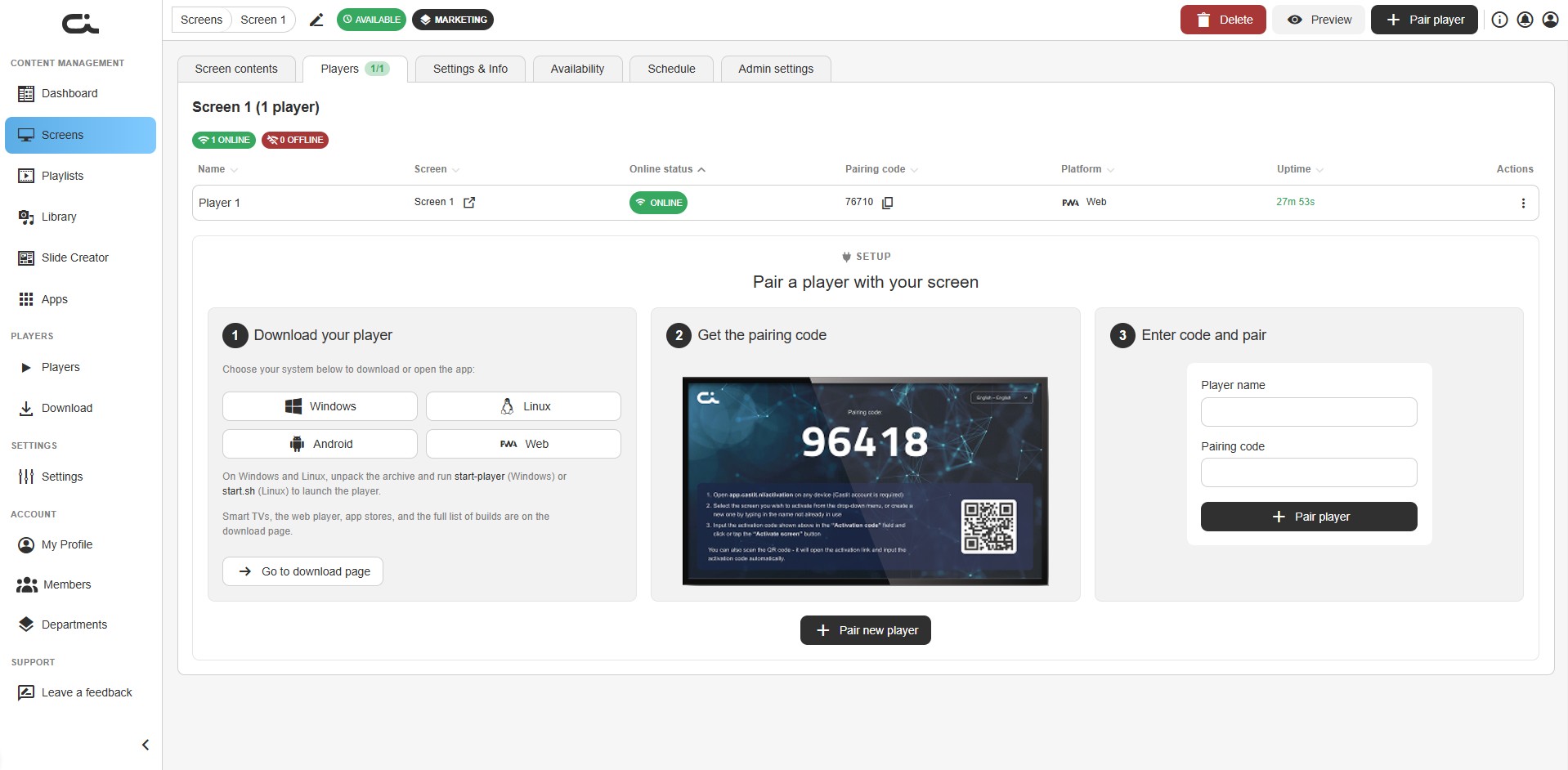
1. Download your player
2. Get the pairing code
3. Enter code and pair
Step 1: Download Your Player
Under "Download your player", "Choose your system below to download or open the app". Quick buttons are provided for the most common systems:
- Windows
- Linux
- Android
- Web
The setup card also notes:
- On Windows and Linux, unpack the archive and run
start-player(Windows) orstart.sh(Linux) to launch the player. - Smart TVs, the web player, app stores, and the full list of builds are on the download page.
To see every supported platform and build, click "Go to download page".
Step 2: Get the Pairing Code
When you launch the Castit player on your device, it displays a pairing screen showing:
Pairing Code Display
- Large 5-digit code (e.g.,
96418) - Prominent display on the player screen
- Code is unique to this pairing session
- QR code for quick scanning (optional method)
Pairing Instructions on Player
The player screen shows instructions:
- Visit the pairing page or use the CMS
- Enter this code to pair with your screen
- Code remains valid until paired or timeout
- Screen shows "Waiting to be paired" message
Important Notes
- The pairing code is displayed on the physical player device
- You need this code to complete pairing in the CMS
- Code is generated automatically when player launches
- New code appears if player is restarted
Step 3: Enter Code and Pair
You can enter the code directly in the Enter code and pair card on the Players tab, or open the Pair player dialog for the full pairing form.
Open the Pair Player Dialog
- Click the "Pair player" button (header) or "Pair new player" (bottom of the setup section)
- The "Pair player" dialog opens
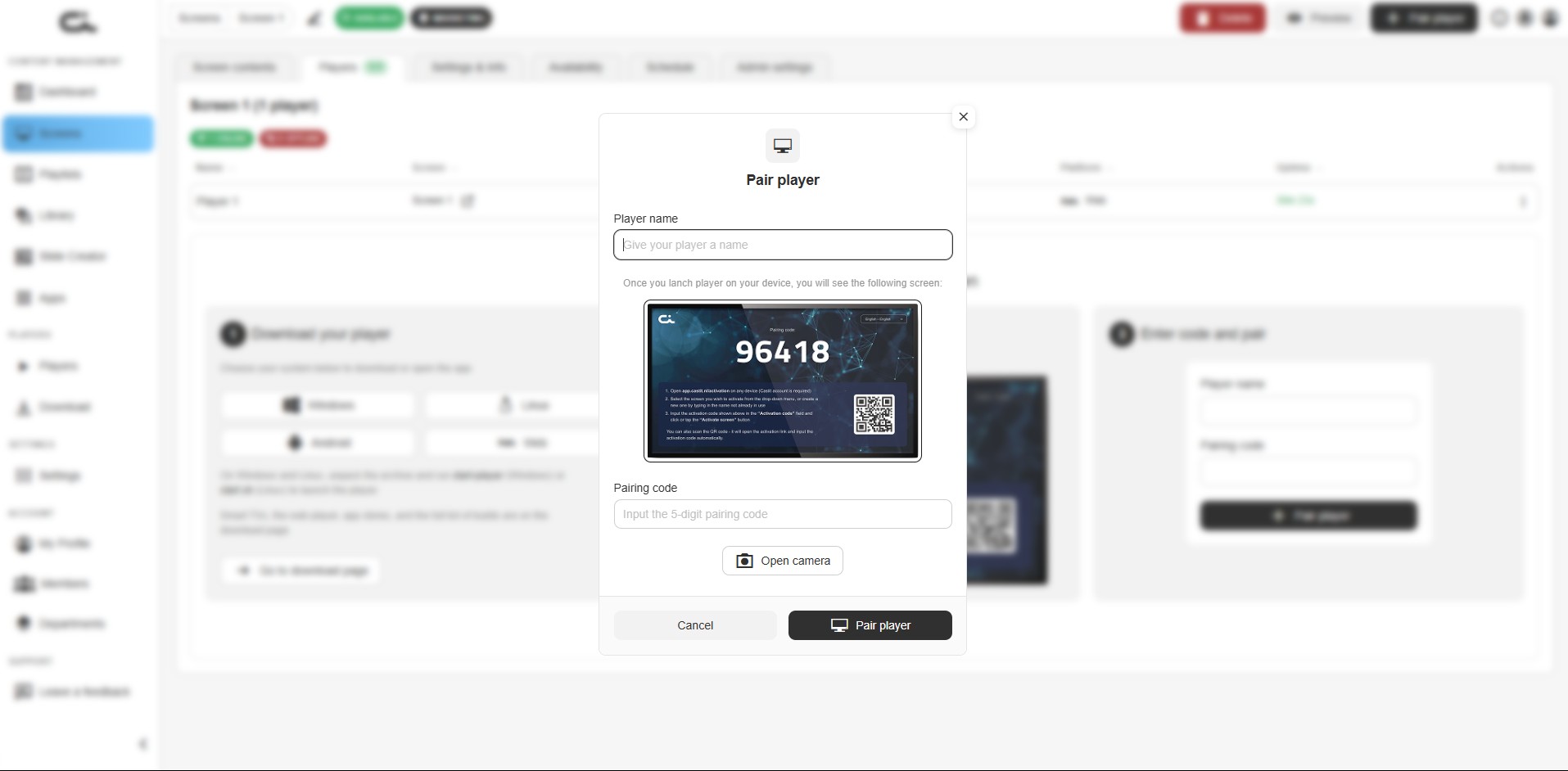
Enter Pairing Information
Player Name
- Required field, placeholder: "Give your player a name"
- Enter a descriptive name for this player
- Examples:
- "Reception Display Player"
- "Main Lobby - Android Box"
- "Breakroom TV Player"
Naming Tips:
- Match the screen name
- Include device type
- Reference location
- Keep it identifiable
Visual Reference
Between the fields, the dialog shows an image of what the player screen looks like ("Once you launch player on your device, you will see the following screen:"):
- Displays the sample pairing code
- Shows the QR code option
Pairing Code
- Required field, placeholder: "Input the 5-digit pairing code"
- Enter the code displayed on the player screen
- Must match exactly
- Example:
96418
Alternative: Scan QR Code
- Click the "Open camera" button
- Use your device camera to scan the QR code on the player screen
- The code is entered automatically
- Convenient for mobile pairing
Complete Pairing
- Verify the player name and code are correct
- Click the "Pair player" button (or "Cancel" to discard)
- The pairing process begins
Pairing Confirmation
When successful:
- The player connects to the screen
- Its Online status shows ONLINE
- Content begins displaying on the physical screen
- The player appears in the players table
After Successful Pairing
Player Status Indicator
Once paired, you'll see player information:
- The Players tab shows an online/total badge (e.g. Players 1/1)
- The header reads "Screen 1 (1 player)" with ONLINE / OFFLINE count pills
- The player appears in the players table with its name and status
Player Management
You can now:
- Monitor player status
- See player online/offline status
- Update player settings
- Remotely restart player if needed
- View player information
Managing Multiple Players
Pairing Additional Players
To pair multiple players to the same screen:
- Click "Pair new player" again
- Launch Castit player on another device
- Follow the same pairing process
- Each player will show the same content
Use Cases for Multiple Players
- Multiple displays showing identical content
- Redundancy for critical displays
- Different locations showing same screen
- Testing before deployment
Player States
No Players Yet
If no players are paired, the Players tab shows the "Pair a player with your screen" setup section with the three-step pairing guide and a "Pair new player" button — and no players table.
Players Connected
When players are paired, a players table appears above the setup section. Each row shows:
- Name — the player's name
- Screen — the screen it's paired to (with a link to open it)
- Online status — ONLINE or OFFLINE
- Pairing code — the player's code (copyable)
- Platform — e.g. Web, Windows, Android
- Uptime — how long the player has been online
- Actions — a ⋮ menu for managing the player
Troubleshooting
Pairing Code Not Working
- Verify the code: Ensure all 5 digits are correct
- Code expired: Restart player to get new code
- Try again: Close dialog and restart pairing process
- Check connection: Ensure device has internet access
Player Not Connecting
- Internet connection: Verify device is online
- Firewall: Check firewall settings aren't blocking connection
- Restart player: Close and relaunch the player software
- Restart device: Reboot the player device
- Check compatibility: Ensure player version is current
Content Not Displaying After Pairing
- Wait a moment: Initial sync may take a few seconds
- Check screen content: Verify content is added to the screen
- Player status: Confirm player shows as connected
- Restart player: Try restarting the player application
Can't Find Pairing Code
- Check player screen: Code displays prominently on player
- Player not launched: Ensure player software is running
- Wrong screen: Make sure you're looking at the correct display
- Restart player: Restart to generate new code
Player Security
Pairing Best Practices
- Only pair trusted devices
- Keep pairing codes confidential during setup
- Remove old/unused players from screens
- Monitor player status regularly
- Keep player software updated
Next Steps
After pairing your player:
- Screen Settings - Configure display options
- Screen Availability - Set operating hours
- Scheduling Content - Create time-based content changes
- Managing Players - Advanced player management