Getting Help in Castit
Castit provides multiple layers of help and support to ensure you can quickly find answers and get assistance when you need it. This guide explains all the ways you can get help while using the platform.
Built-In Contextual Help (i) Info Button
What is the Info Button?
Throughout the Castit CMS, you'll find (i) info buttons on nearly every page. These buttons provide instant, context-specific help without requiring you to leave your current workflow or search through documentation.
Where to Find Info Buttons
Look for the (i) icon in the interface, typically located:
- In page headers
What the Info Button Provides
When you click an info button, you'll see:
General Overview
- What the feature or page does
- What you can accomplish here
- How it fits into your workflow
Step-by-Step Instructions
- How to complete common tasks
- What information you need to provide
- What happens after each action
Key Concepts
- Important terminology
- Feature capabilities
- Best practices and tips
Quick Reference
- Available options and settings
- Tab descriptions
- Status indicators and filters
Info Button Coverage
The (i) info button is available on all major sections:
Screens
- General overview of Screens
- Creating a new Screen
- Adding content to a Screen
- Screen options (preview, edit, delete, filters)
- Connected Players management
- Settings & Info configuration
- Availability settings
- Schedule management
- Pairing a Player
Playlists
- General overview of Playlists
- Creating a Playlist
- Adding content to a Playlist
- Duration & playback order
- Playlist options (edit, preview, duplicate, delete)
- Playlist content management
- Playlist Availability
- Adding Playlists to Screens
- Best practices
Library
- General overview of the Library
- Uploading content
- Library content types (Uploaded, Slides, Stock)
- Organizing content with folders
- Finding content (search, filter, sort)
- Library item options
- Using Library content on Screens & Playlists
Slide Creator
- General overview of Slide Creator
- Understanding tabs (Your Designs, Your Templates, Castit Templates)
- Creating a new Slide
- Adding content to a Slide
- Using the Slide Editor (canvas)
- Managing Slides
- Organizing Slides with folders
- Slide Availability
- Using Slides on Screens & Playlists
Apps
- General overview of Apps
- Available Apps and categories
- Installing an App
- Connecting your account (authentication)
- Customizing App content
- App duration & playback
- Adding Apps to Screens & Playlists
- Filtering, sorting & viewing Apps
Players
- General overview of Players
- What a Player does
- Supported devices & platforms
- Pairing a Player (Overview)
- Install Castit Player (Windows)
- Install Castit Player (Linux)
- Install Castit Player (Android)
- Web Player (Browser)
- Pair the Device in Castit CMS
- Players list & status
- Player details & tabs
- Previewing a Player
- Managing multiple Players per Screen
Downloads
- Overview of the Downloads page
- Available Player downloads
- Platform-specific instructions (Android, Windows, Linux, Web)
- What to do after download
Settings
- General overview
- Profile settings
- System Preferences
- Slide Transitions settings
- Manage Users settings
Feedback & FAQ
- How to leave feedback
- When to use FAQ vs Support
Start with the (i) info button whenever you're on a new page or trying a feature for the first time. It provides immediate, relevant guidance without interrupting your work.
FAQ Section
When to Use the FAQ
The FAQ section is perfect for:
- Quick answers to common questions
- Troubleshooting common issues
- Understanding feature limitations
- Learning about supported formats and platforms
What's in the FAQ
The FAQ covers:
- Screens & Players management
- Playlists & content playback
- Library uploads & supported formats
- Apps & integrations
- Scheduling & availability
- Common errors and their solutions
How to Access
In the left sidebar, open the Support section and click FAQ (located just below Leave a feedback). This opens the Help page, where questions are organized by topic and can be expanded to reveal detailed answers.
FAQ Interface Overview
When you open the FAQ, you'll see the Help page. A short intro explains where you are and how to reach support directly (by phone or email) if you can't find an answer.
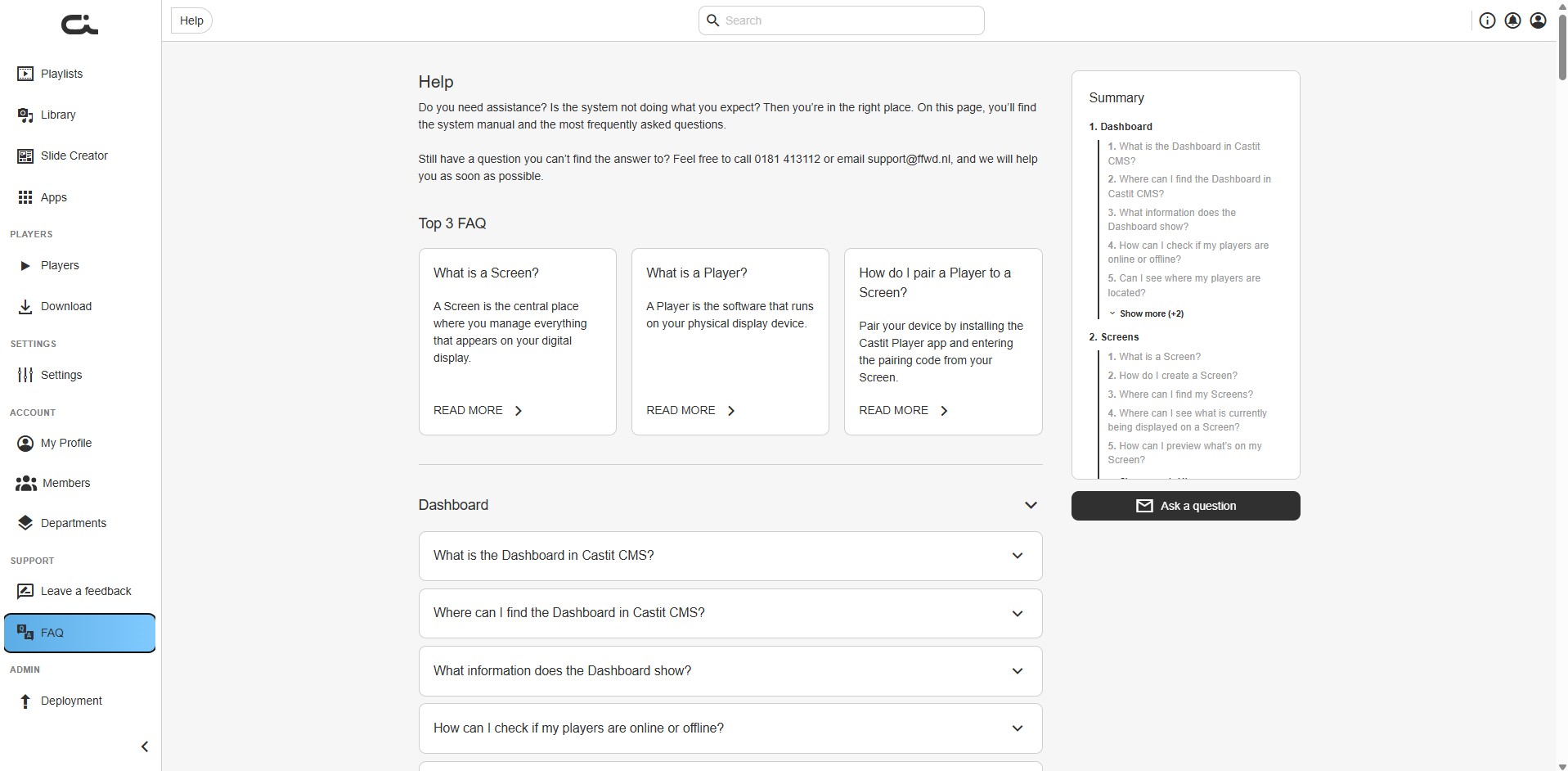
Top 3 FAQ - The most important questions for new users are highlighted in prominent cards at the top:
- What is a Screen?
- What is a Player?
- How do I pair a Player to a Screen?
Each card includes a brief explanation with a "READ MORE" link for detailed information.
Organized by Topic - Below the Top 3 FAQ, questions are grouped into collapsible sections:
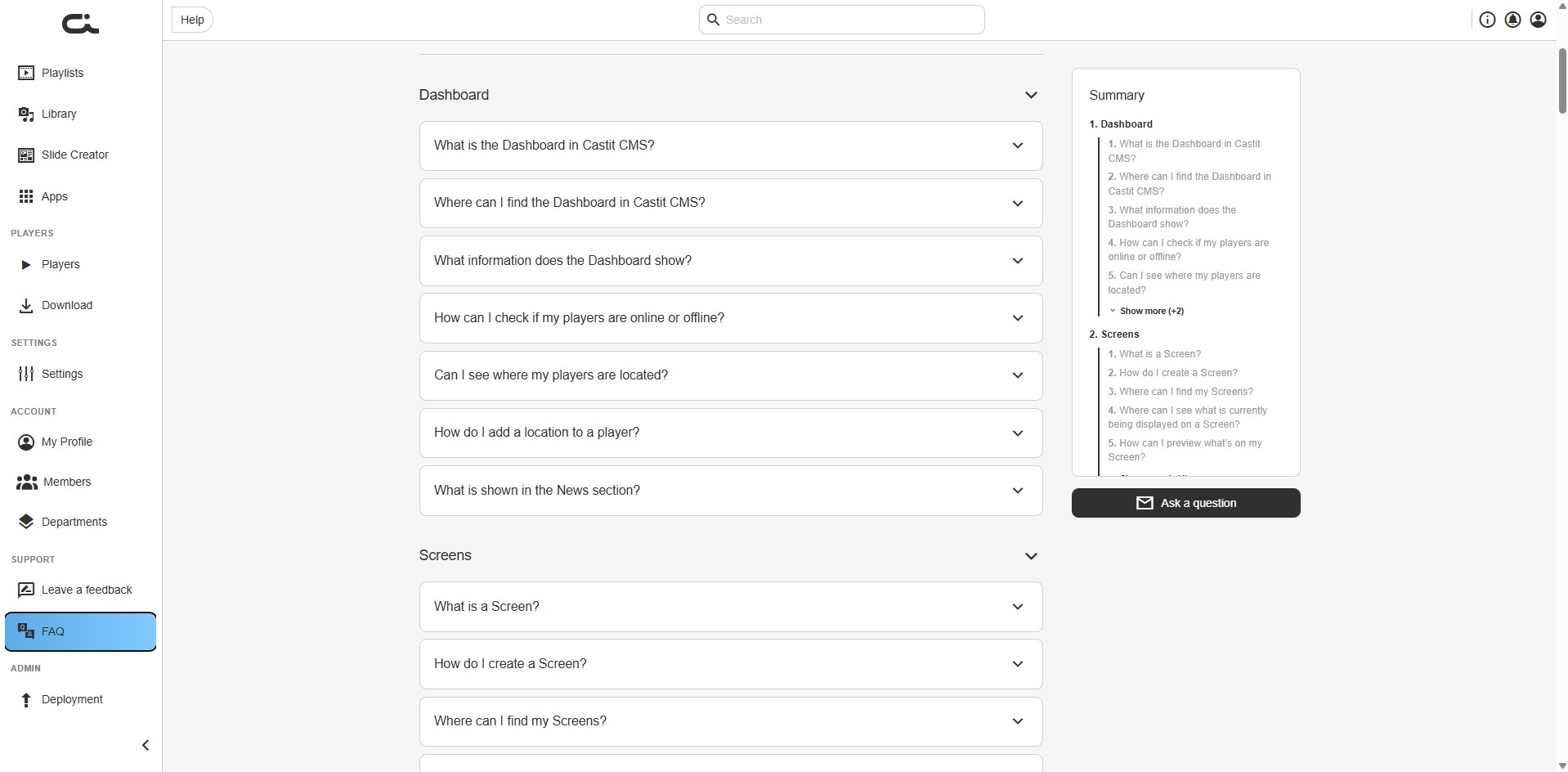
- Dashboard - Understanding the dashboard, player status, locations, and news
- Screens - Creating screens, pairing players, viewing content
- Playlists - Creating playlists, adding content, duration settings
- Library - Uploading files, supported formats, organization
- Slide Creator - Designing slides, templates, and the editor
- Apps - Installing apps, connecting accounts, troubleshooting
- Players - Player types, pairing process, device support
- Downloads - Getting player software for different platforms
- Settings - System preferences, slide transitions, and admin settings
- Feedback - Leaving feedback and sharing suggestions
- E-paper displays - Enabling and using e-paper devices
- Role-based permissions and drafts - Departments, member roles, and the draft/publish workflow
Summary Sidebar - On the right side, you'll find a Summary table of contents with clickable links to jump directly to specific questions, plus an Ask a question button to send the Castit team a question directly.
Using the Search Feature
Can't find what you're looking for? Use the search bar at the top of the FAQ page to filter questions:
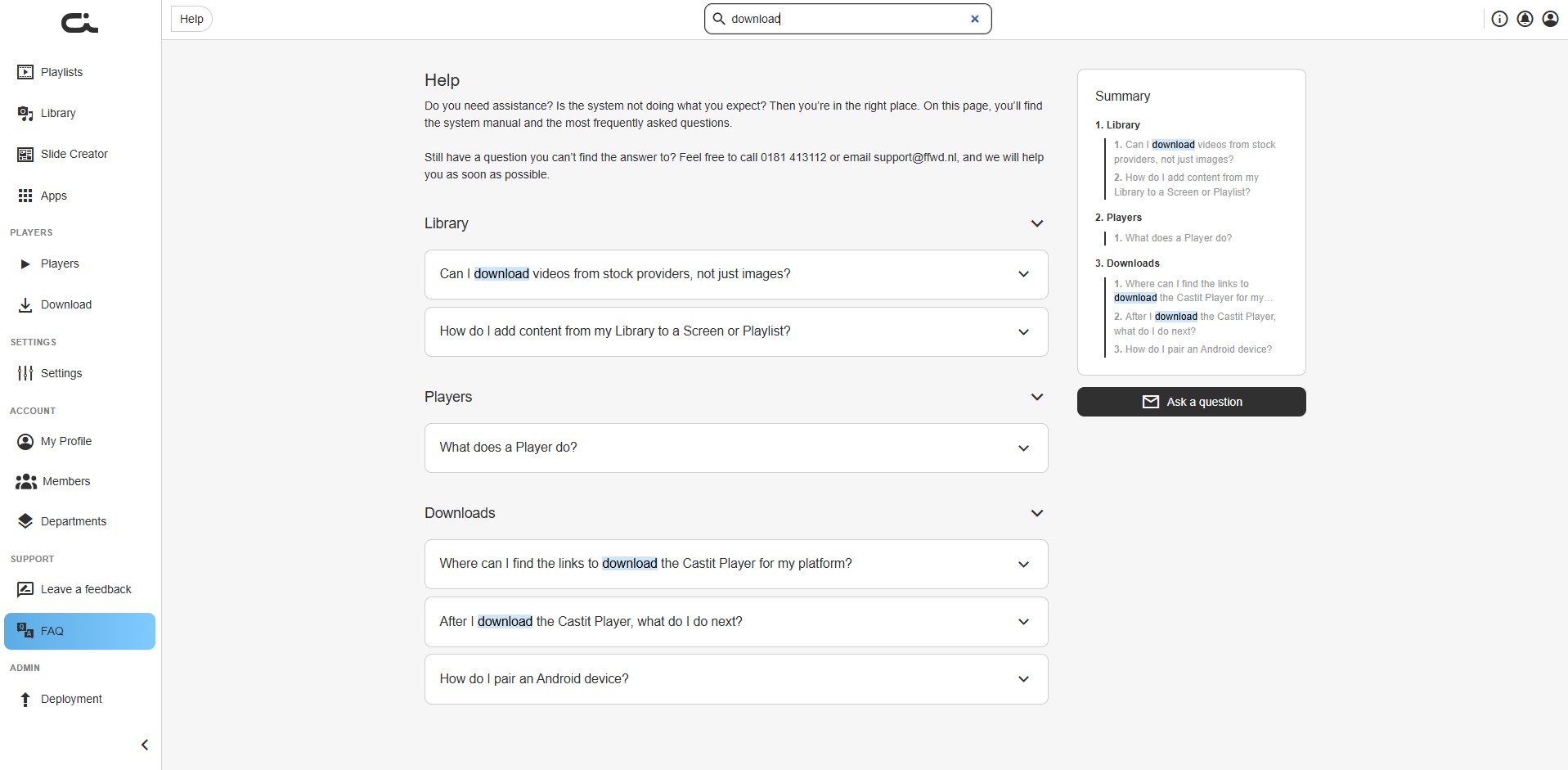
The search function:
- Highlights matching terms throughout the page
- Filters questions to show only relevant results
- Updates the Summary sidebar with search results
- Searches across all FAQ sections simultaneously
Simply type your keyword (like "player", "upload", or "schedule") and the page will automatically filter to show only matching questions.
Feedback System
When to Use Feedback
Use the Feedback feature when you want to:
- Report a bug or technical issue
- Suggest a new feature or improvement
- Share your experience with the platform
- Provide general comments or praise
How to Leave Feedback
- Click Leave a feedback in the left sidebar, under the Support section
- Choose a satisfaction rating (stars)
- Write your message describing your feedback
- Click Leave a feedback to submit
The feedback opens as a pop-up dialog, so you can send it from anywhere in the CMS. Your feedback goes directly to the Castit team and helps guide platform improvements and future updates.
Contact Support
When to Contact Support
Reach out to support when you need:
- Help with a specific technical problem
- Account or billing assistance
- Custom configuration guidance
- Urgent issue resolution
How to Contact Support
Open the Help page (sidebar Support → FAQ) and use Ask a question to reach the support team directly. You can also call or email the support contacts shown at the top of the Help page.
This Documentation
When to Use Documentation
This comprehensive documentation is ideal for:
- Learning features in-depth
- Following detailed tutorials
- Understanding workflows and best practices
- Planning your digital signage implementation
- Training new team members
Documentation Structure
The documentation is organized into focused sections:
- Getting Started - Login, registration, and interface basics
- Screens - Creating screens, adding content, pairing players, settings, availability, and scheduling
- Playlists - Building reusable content sequences
- User Guide - In-depth guides:
- Content Management - Library uploads, Slide Creator, and Apps
- Players - Player installation and management
- Settings - System settings, account settings, and permissions & workflow
- Downloads - Getting player software for every platform
Help Hierarchy - When to Use Each Resource
Here's a quick guide to choosing the right help resource:
| Need | Best Resource | Why |
|---|---|---|
| Quick explanation of current page | (i) Info Button | Instant, contextual, no navigation required |
| Common question or quick answer | FAQ | Fast, searchable, covers typical issues |
| Report a bug or suggest a feature | Feedback | Direct line to product team |
| Specific technical problem | Contact Support | Personalized help from support team |
| In-depth learning or training | Documentation | Comprehensive, detailed tutorials |
Layer your help approach:
- Start with the (i) info button on the current page
- Check the FAQ if you need more detail
- Use Feedback to report issues or suggest improvements
- Read the Documentation for comprehensive learning
- Contact Support for urgent or complex issues
Best Practices for Getting Help
Before Asking for Help
- Check the (i) info button on the page you're working on
- Try the FAQ for common questions
- Note any error messages you see
- Know what you were trying to accomplish when the issue occurred
When Reporting Issues
Provide helpful details:
- What you were trying to do
- What happened instead
- Any error messages (exact text if possible)
- Which browser you're using
- Screenshots if applicable
Learning Efficiently
- Explore info buttons as you navigate new sections
- Refer to documentation when planning implementations
- Use FAQ for quick lookups
- Ask support when documentation doesn't cover your specific scenario
Community and Resources
While using Castit, remember:
- The platform is designed to be intuitive - explore and experiment
- Info buttons provide guidance at every step
- The team actively reviews feedback and improves the platform
- Documentation is continuously updated with new features
Need help right now? Click the (i) info button on your current page, or navigate to the section of this documentation that matches what you're working on.
For immediate assistance, open the Help page (sidebar Support → FAQ) and use Ask a question.